Quick order form for PrestaShop 8.2 and 9.x: trade buyers type a reference, EAN or name (type-ahead incl. combinations), paste a list or upload a CSV; every line is checked on the server with their own price and stock, minimum quantities, options and personalisation, red lines offer the fix, and all valid lines go to the cart in one click. Saved lists, order again, access by customer group, activity numbers. No overrides.
Tested on 9.2.0 & 8.2.8Updated Nov 4, 2026Version 1.0.0Compatible with PrestaShop 8.2 – 9.x No core file edits
Built forPrestaShop
Order by reference in a minute (sample data)1 of 7
What it does
Quick order form for PrestaShop 8.2 and 9.x: trade buyers type a reference, EAN or name (type-ahead incl. combinations), paste a list or upload a CSV; every line is checked on the server with their own price and stock, minimum quantities, options and personalisation, red lines offer the fix, and all valid lines go to the cart in one click. Saved lists, order again, access by customer group, activity numbers. No overrides.
Features
Enter
Type-ahead by reference, EAN-13, UPC, MPN or name; every combination listed with its own reference and picture
Paste a list from a spreadsheet or an e-mail (comma, tab, semicolon or space)
Upload a CSV, with a template to download
Check
Every line checked on the server with the buyer's own price (groups, specific and quantity prices) and your stock
Minimum quantities, products with options, required personalisation, products not for sale
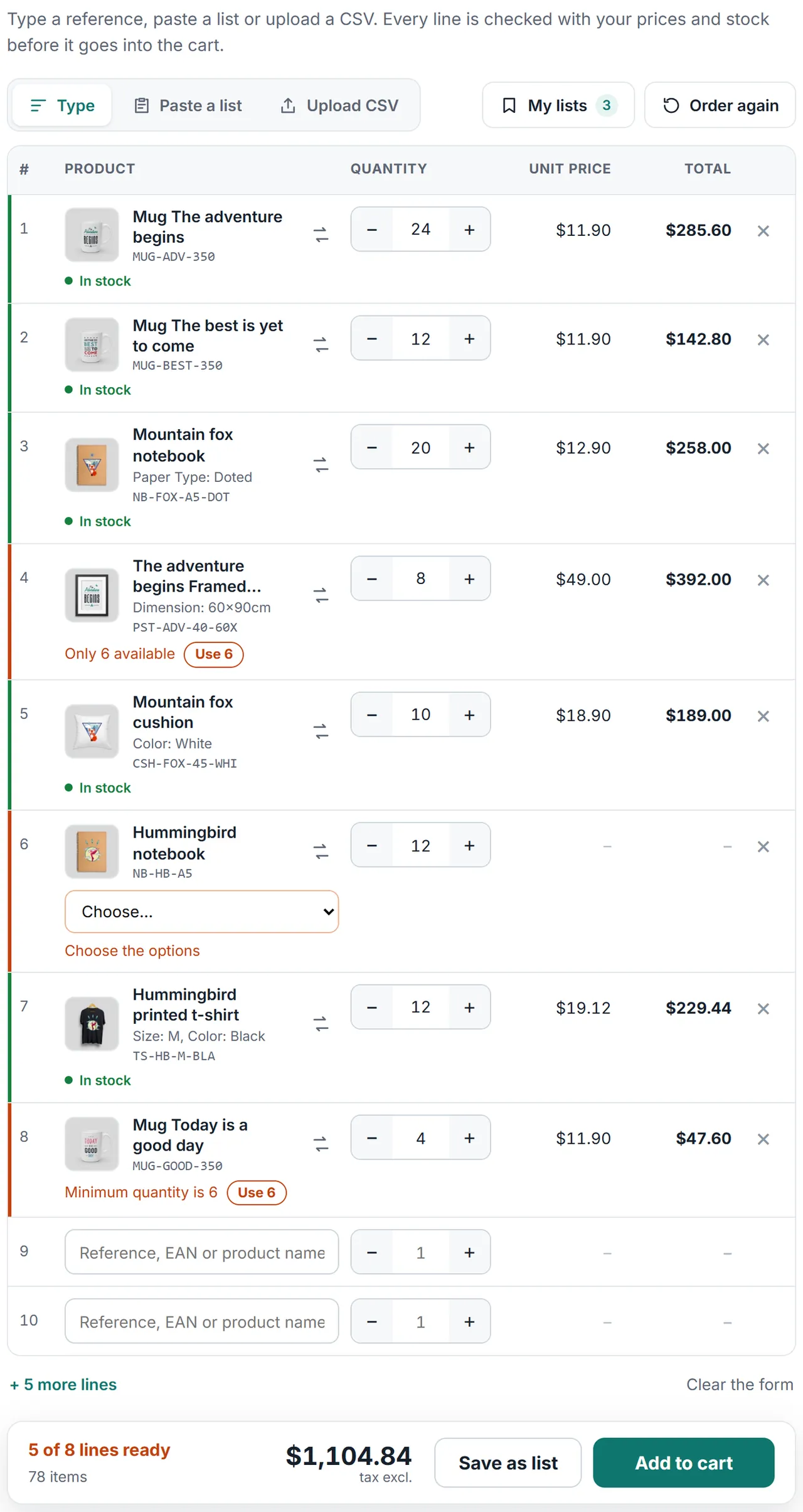
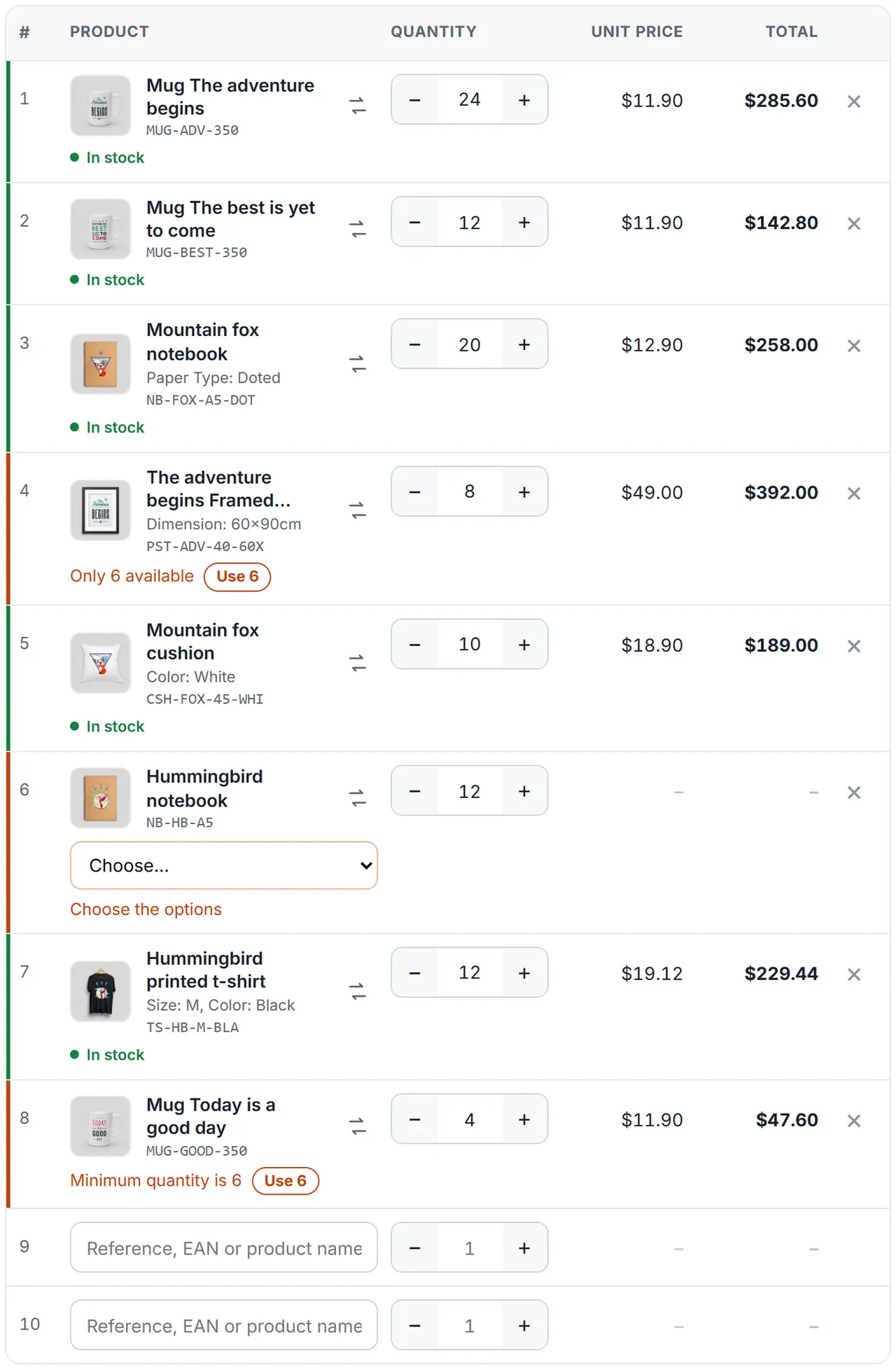
Red lines say why and offer the fix ("Only 6 available · Use 6"); same products are added up
All valid lines to the cart in one click, checked again; the header cart updates
Come back
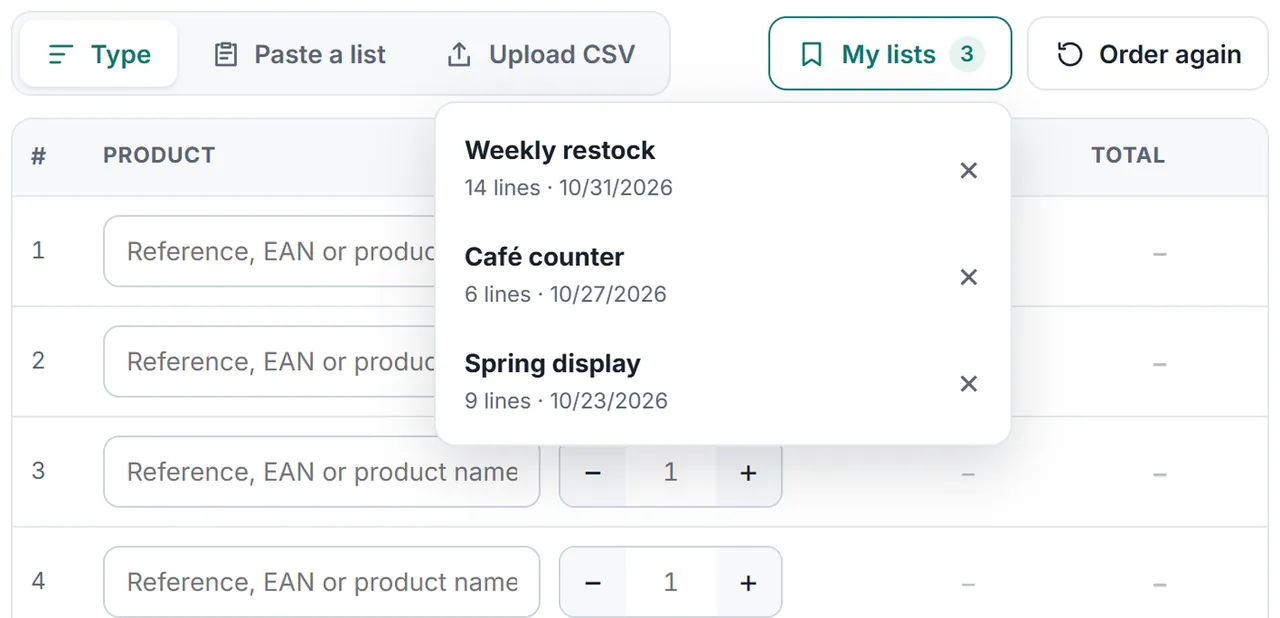
Saved lists in the account: "Weekly restock", "Café counter", "Spring display"
Order again: any past order back in the form with today's prices and stock (also from the order details page)
Control
Everyone, signed-in customers or chosen customer groups
Links in the header, in My account and on the order details page
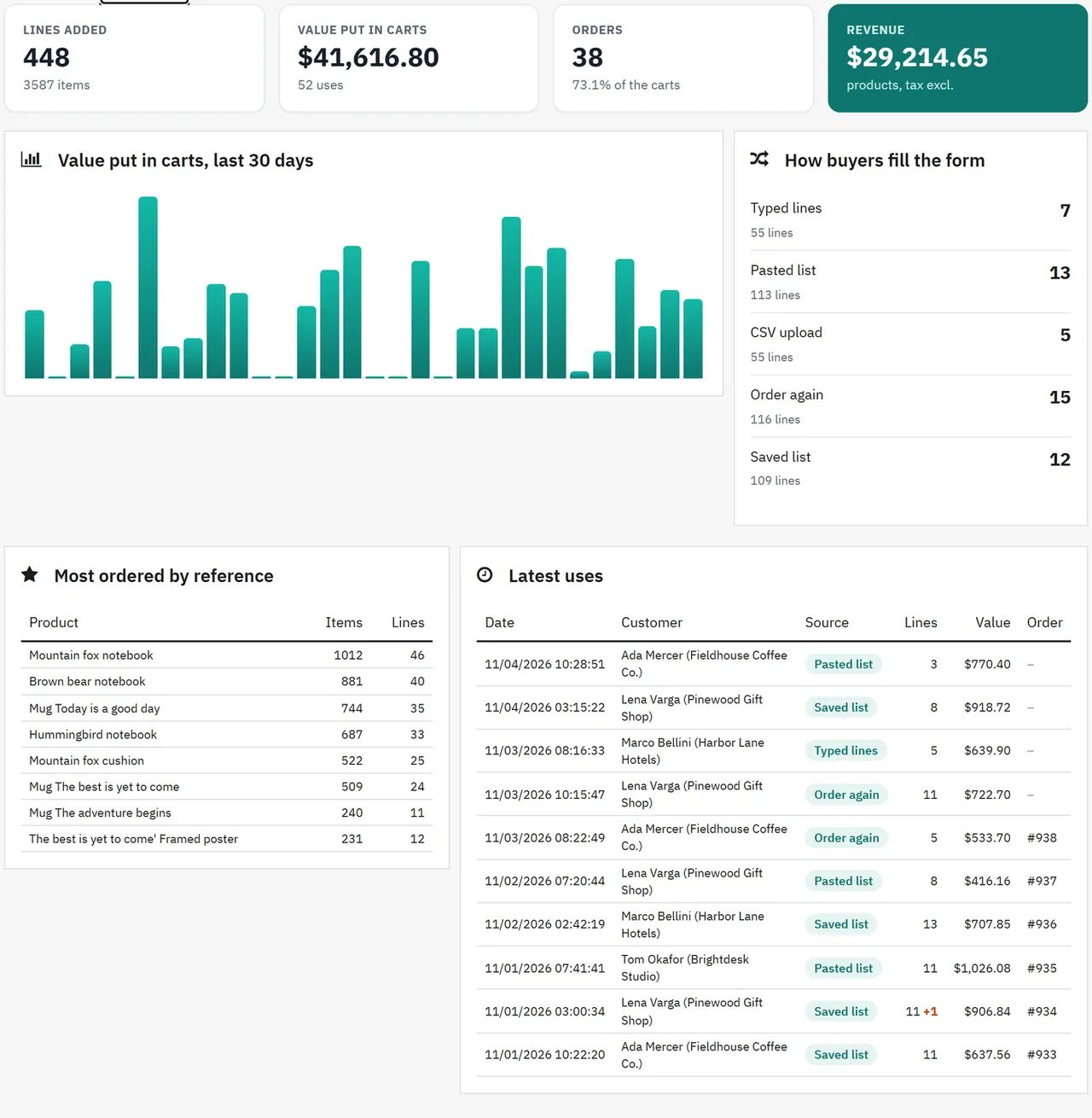
Activity: lines and value put in carts, orders and revenue from them, how buyers fill the form, most ordered products
Your best customers order from a list, not from the catalogue. Quick Order Form gives repeat and trade buyers one page to order everything they need in a minute.
What you get
Download & installOne module .zip for PrestaShop 8.2 and 9.x, installed in Modules > Module Manager > Upload a module. Download it from My licenses right after payment.
12 months of updates & supportNew versions and help for 12 months (24 or 36 months at checkout). After that the module keeps working; renew anytime at 50%.
License for your storeOne production domain with all its subdomains; staging and local development hosts are free. How licensing works
30-day refundFull refund within 30 days of your first purchase, no reason needed. Refund policy
Tested buildsPrestaShop 8.2 – 9.x. Tested on PrestaShop 9.2.0 and PrestaShop 8.2.8.
Documentation & supportFull guide (Installation, Configuration, Usage, FAQ) on this page. Tickets from your account, first reply within 1 business day.
Compatibility
Quick Order Form works with PrestaShop 8.2 – 9.x.
We list the builds we install and test on. “Tested” means the test plan ran on that build; “Supported” means the build is inside the supported range.
Compatibility
Version
Range
Runs on
Status
PrestaShop 9
9.0 – 9.2
PHP 8.1 – 8.4
Tested on 9.2.0
PrestaShop 8.2
8.2.0 – 8.2.x
PHP 7.2.5 – 8.1
Tested on 8.2.8
1.0.0
Nov 4, 2026
Latest
First release for PrestaShop 8.2 and 9.x (Hummingbird and Classic storefronts).
Quick order page: type-ahead by reference, EAN-13, UPC, MPN or name, every combination listed with its own reference and picture; keyboard friendly (arrows, Enter, Escape).
Paste a list (comma, tab, semicolon or space) and CSV upload with a template to download.
Every line checked on the server with the buyer's own price (customer group, specific and quantity prices) and the stock, the minimum quantity, products with options, required personalisation and products not for sale. Red lines say why and offer the fix ("Use 6"); lines of the same product are added up.
Add all valid lines to the cart in one click (checked again on the server); the header cart updates.
Saved lists for signed-in customers, "Order again" from past orders (menu on the form and a button on the order details page), a link in My account and in the header.
Access: everyone, signed-in customers or chosen customer groups.
Back office: settings and an Activity tab (lines, value put in carts, orders, revenue, how buyers fill the form, most ordered products, latest uses).
Personal data: lists are removed with the customer and through the GDPR module, and included in its data export.
How do I install the module?
Upload. Modules > Module Manager > Upload a module: drop the .zip from My licenses. One package for PrestaShop 8.2 and 9.x.
Configure. Click Configure. Settings follow the shop context, so in a multistore you set them for all shops or per shop.
Enter the license key. Paste the key from My licenses in the License panel and save. You have 14 days to do it; local and staging addresses are included.
PrestaShop 8.2 – 9.x. Tested on PrestaShop 9.2.0 and PrestaShop 8.2.8. The Compatibility tab lists every version range.
Do the modules use overrides?
No. They work through PrestaShop hooks, widgets and the core product customization system. Nothing is written to /override and no core file is changed, so PrestaShop updates and other modules keep working.
Which themes do they work with?
They are tested on Classic and Hummingbird, the two themes PrestaShop ships. Themes based on them work; a theme that removes the standard product page containers may need a small CSS adjustment, and support helps with that.
Do they work with multistore?
Yes. Settings follow the shop context, like PrestaShop's own modules. A license covers one production domain with its subdomains, so shops on other domains need a license each.
What does the license cover?
One production store domain with every subdomain (www, shop., staging.), plus local development hosts such as localhost, *.local and *.test. A store on another domain needs its own license; a second-store license is 40% off. You have 14 days after installing to enter the key. 12 months of updates and support are included; after that the module keeps working and renewals are 50% off. How licensing works
Can I get a refund?
Yes. Ask for a full refund within 30 days of your first purchase, no reason needed: open a ticket or write to [email protected] with your order number. The money goes back to the card or bank account you paid with within 5 business days of approval. Refund policy
How do I get help?
Open a ticket from your account, so your license details are attached. We answer Monday to Friday: bug reports within 1 business day, how-to questions within 2. Support policy. Not a customer yet? Ask a pre-sales question.
Trade and repeat buyers know what they need: references and quantities. Product pages and the cart make them click through the catalogue one product at a time. Quick Order Form gives them one page to order a whole list in a minute.
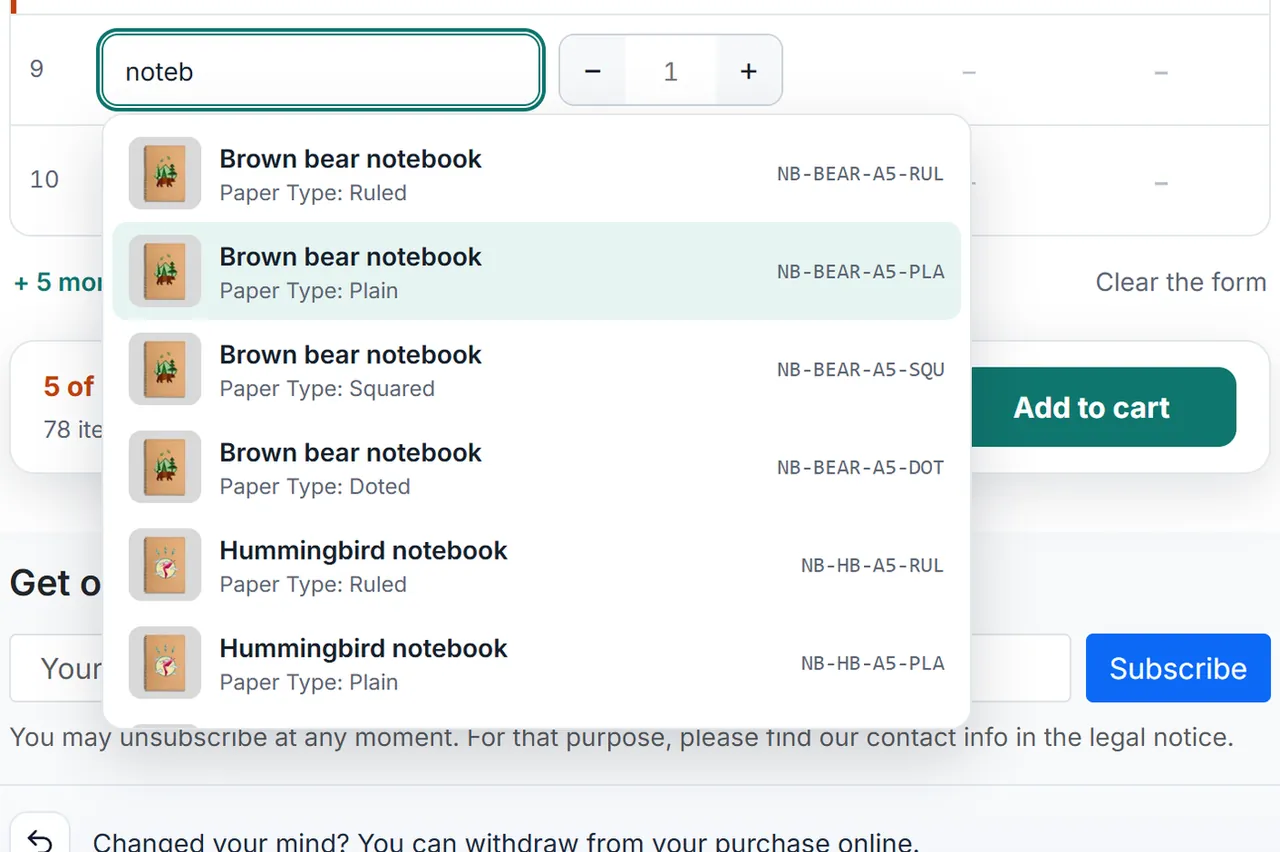
Type a reference, an EAN-13, UPC, MPN or a product name: matching products and every combination appear with their picture and reference. Arrows and Enter choose, the cursor jumps to the quantity.
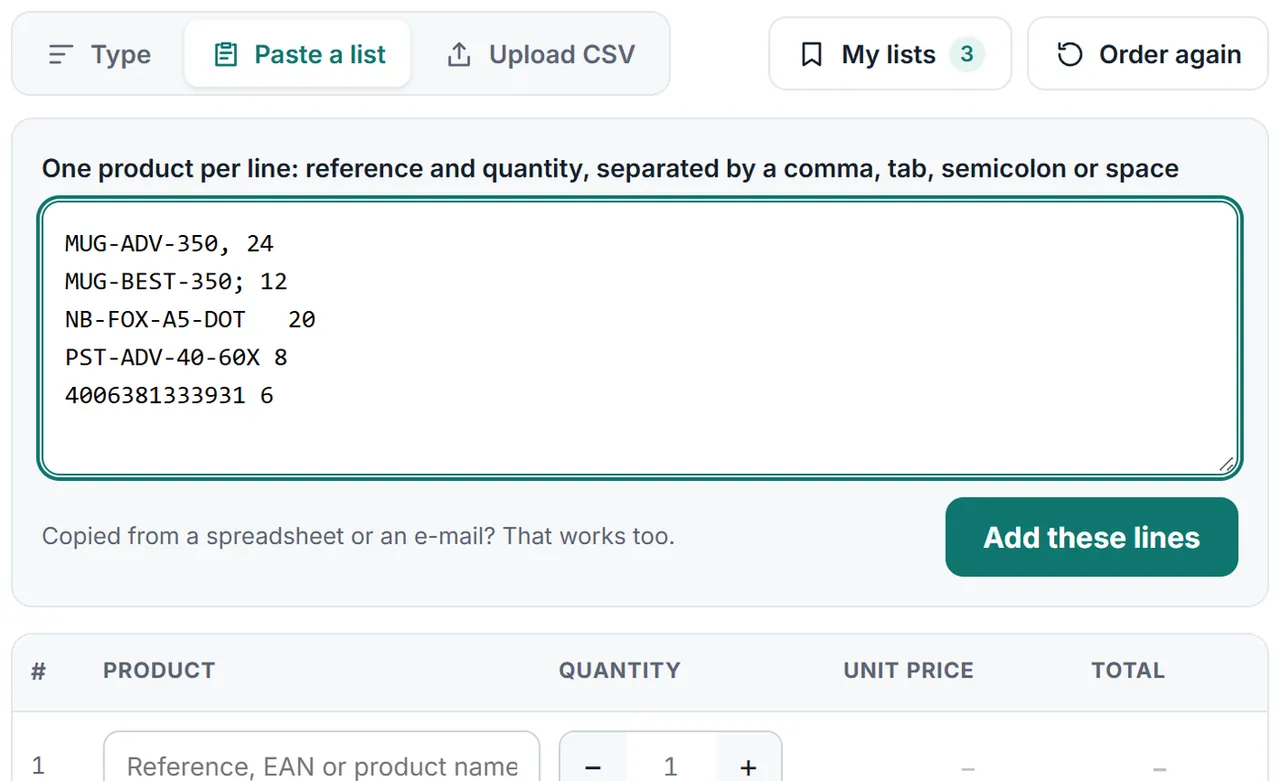
Paste a list from a spreadsheet or an e-mail: reference and quantity per line, separated by a comma, tab, semicolon or space.
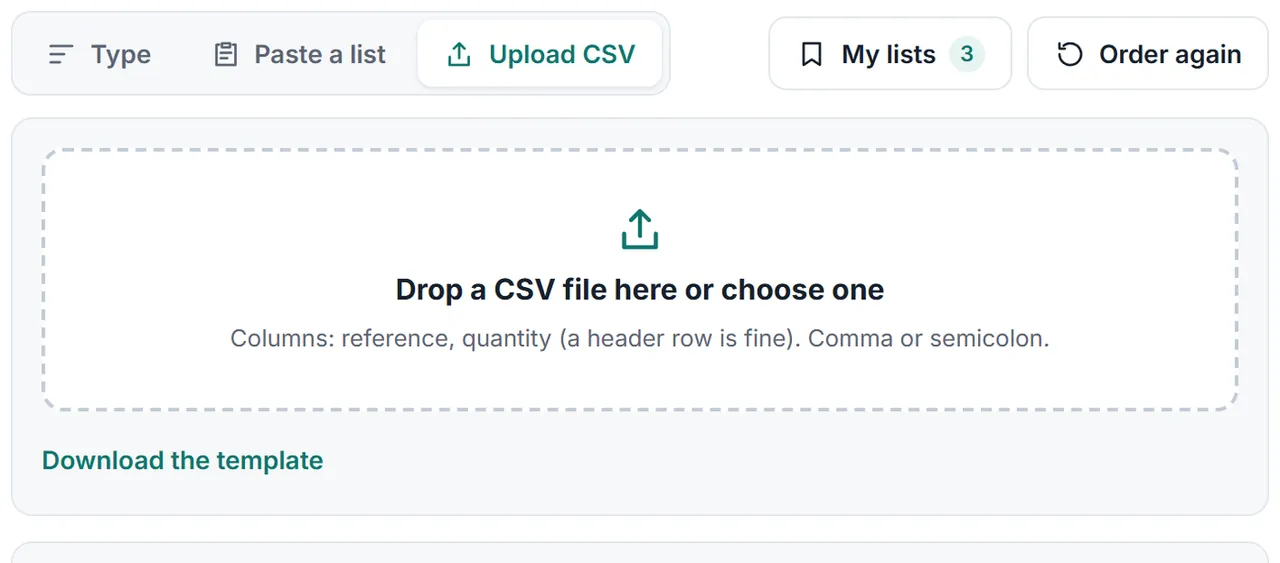
Upload a CSV with a reference and a quantity column (a header row is fine); a template is one click away.
Every line checked on the server with the buyer's own price (customer group, specific and quantity prices) and your stock, minimum quantities, options, required personalisation and products that are not for sale. Red lines say why and offer the fix ("Only 6 available · Use 6"); lines of the same product are added up.
Add to cart puts all valid lines into the normal PrestaShop cart in one click. Prices, discounts, shipping and checkout stay exactly as in your store.
Come back: saved lists for signed-in customers ("Weekly restock") and "Order again" for past orders, with today's prices and stock.
Who may use it: everyone, signed-in customers, or chosen customer groups. Links in the header, in My account and on the order details page.
Activity in the back office: lines and value put in carts, orders and revenue from those carts, how buyers fill the form, the most ordered products.
No overrides, no outside service.
Tested on
PrestaShop
9.2.0 and 8.2.8
Storefront
Hummingbird and Classic, desktop and phones
Back office
PrestaShop 9 and 8 admin themes
Quick order page
Installation
Requirements
PrestaShop 8.2.0 to 9.x, PHP 7.2.5 to 8.5 (as your PrestaShop version needs)
Hummingbird, Classic or a theme built on them (the header link uses the displayNav2 hook, the account link displayCustomerAccount, the order button displayOrderDetail)
Install
Modules > Module Manager > Upload a module: drop kvquickorder-1.0.0.zip.
Click Configure next to Quick Order Form.
Choose who may use the form and which links show.
Own-site edition: enter your licence key on the Licence tab.
Open the form with Open the form (top right) and try a few of your references.
The form lives at index.php?fc=module&module=kvquickorder&controller=order (with friendly URLs: /module/kvquickorder/order). Link it from your menu or a CMS page if you like.
Updating
Upload the new zip the same way (Modules > Module Manager > Upload a module); PrestaShop runs the upgrade. Lists, activity and settings stay.
Uninstalling
Uninstalling deletes the saved lists, the activity numbers and the settings. Carts and orders are not touched.
Configuration
Modules > Module Manager > Quick Order Form > Configure has three tabs: Settings, Activity and Licence (own-site edition).
Settings
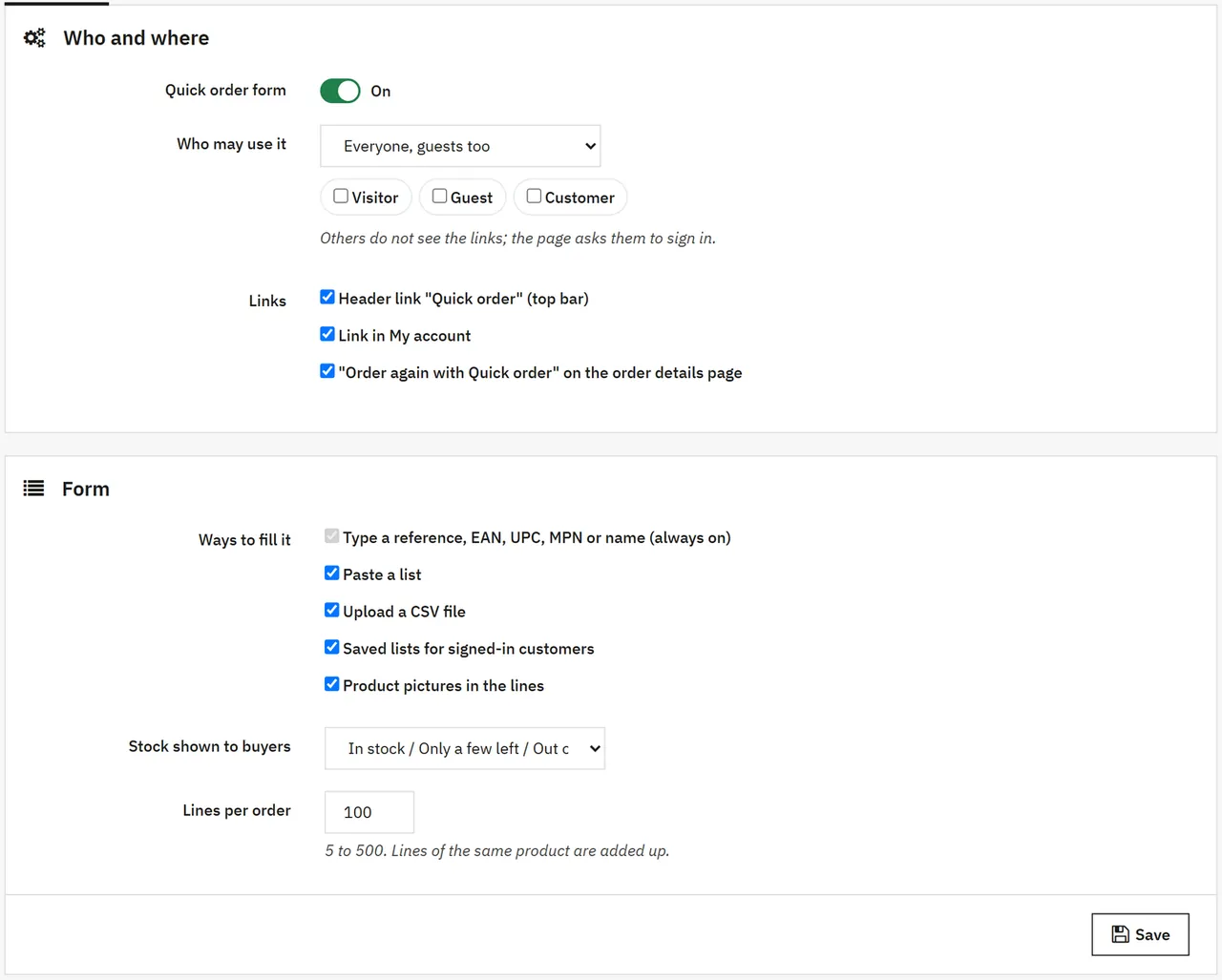
Who and where
Setting
What it does
Quick order form
On / Off for the whole storefront part. Off: links hidden, the page sends visitors to the home page.
Who may use it
Everyone, guests too · Signed-in customers · Customers of the chosen groups. Others do not see the links; the page asks them to sign in.
Header link
"Quick order" in the top bar next to the account and cart links (displayNav2).
Link in My account
A "Quick order" tile; it shows the number of saved lists.
Order details
"Order again with Quick order" on the order details page of the account.
Form
Setting
What it does
Ways to fill it
Typing is always on. Paste a list, CSV upload and saved lists can be switched off.
Product pictures
Small pictures in the lines and the type-ahead.
Stock shown to buyers
"In stock / Only a few left / Out of stock", the exact quantity, or nothing (lines that cannot be ordered still say why).
Lines per order
5 to 500 (default 100).
What is checked for every line
The product exists in this shop, is active, visible and available for order, and the buyer's customer group may see it.
Products with combinations need a combination: the line offers the options.
Products with required personalisation are ordered from their product page.
Minimum quantity of the product or combination (when it is not in the cart yet).
Stock when stock management is on and the product cannot be ordered out of stock, counting what is already in the cart and on other lines. Products that may be ordered out of stock get a note ("the rest ships when it is back").
The price is PrestaShop's own price for this buyer and quantity: customer group reductions, specific prices and quantity discounts, with or without tax as your store shows it.
Adding to the cart checks every line again on the server and uses PrestaShop's cart, so cart rules, shipping, taxes and payment work as usual.
Usage
Type
Start typing a reference, an EAN-13, UPC, MPN or a name. Matching products and their combinations appear with their picture and reference. Use the arrows and Enter (or click); the cursor jumps to the quantity. Enter in the quantity moves to the next line. A new empty line appears when the last one is used.
Type-ahead
Pressing Enter on a reference without choosing from the list looks it up exactly: combination reference first, then product reference, EAN-13, UPC and MPN. When every combination carries the product reference, the line asks for the options.
Paste a list
Paste a list takes one product per line: reference and quantity separated by a comma, tab, semicolon or space (HB-1042, 12, HB-2210-BLK-M;6, 4006381333931 24). A line without a quantity orders 1.
Paste a list
Upload a CSV
Upload CSV reads a file with a reference column and a quantity column. Headers like reference, ref, sku, ean and quantity, qty are recognised; without a header the first column is the reference and the second the quantity. Comma, semicolon and tab files work. Download the template gives an example.
CSV upload
Lines and fixes
Every line shows the product, the unit price and the line total for this buyer. Green lines are ready, amber lines are fine with a note (backorder, same product on another line), red lines say why they cannot be ordered and offer the fix: "Use 6" sets the quantity, a list offers the options. The bar at the bottom shows how many lines are ready, the items and the total.
Lines
Add to cart adds every ready line, checks them again, and shows "View cart" and "Checkout". Red lines stay in the form.
Saved lists and order again (signed-in customers)
Save as list stores the lines under a name; the same name replaces the list. My lists loads or deletes them.
Order again lists the last orders; choosing one loads its lines with today's prices and stock. The order details page in the account has the same button.
ListsOrder again
On phones
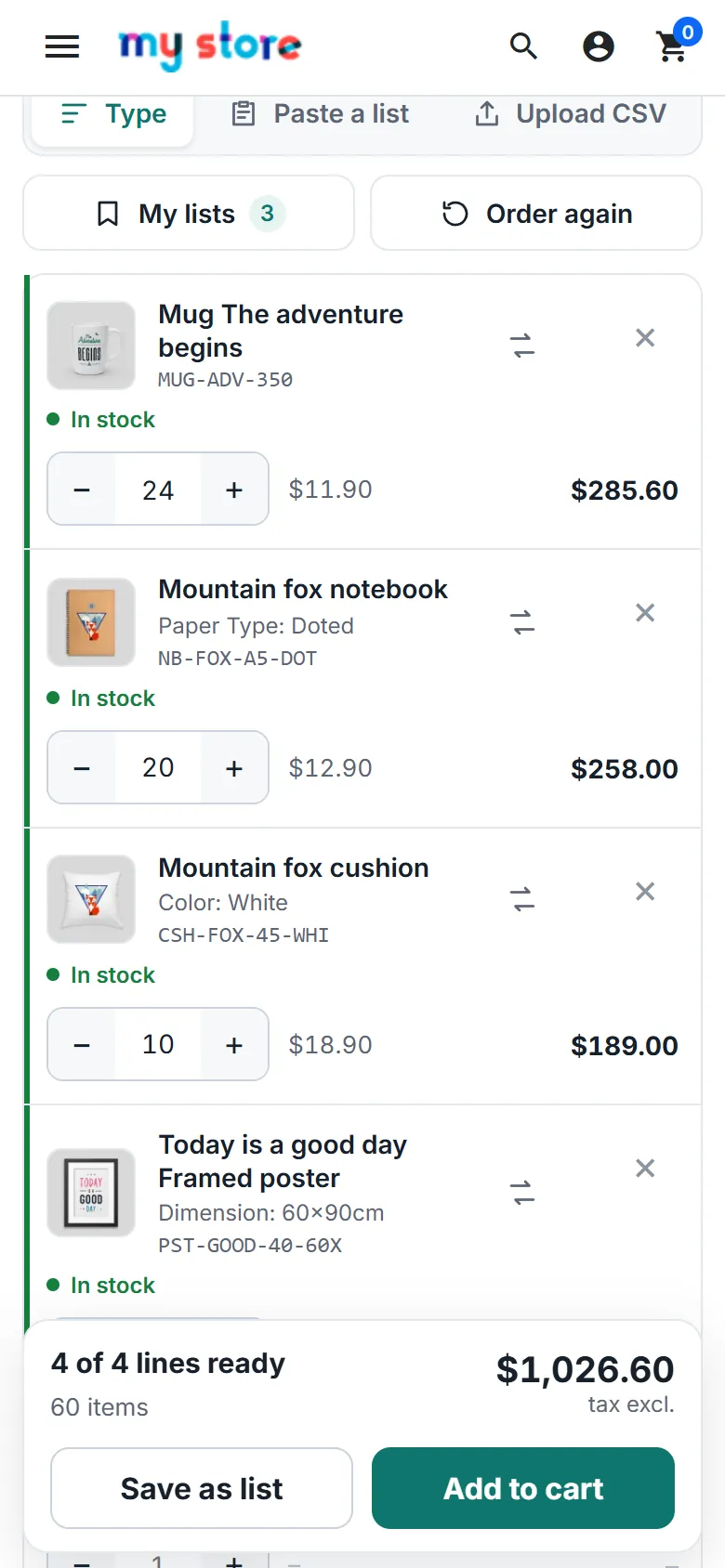
Lines become cards; the total and Add to cart stay at the bottom of the screen.
Phone
Activity
The Activity tab shows the last 30 days: lines added, value put in carts, orders placed with those carts and their revenue (products, tax excluded), a daily chart, how buyers filled the form (typed, pasted, CSV, order again, saved list), the most ordered products and the latest uses with links to the orders.
Activity
FAQ
Does it change my prices or the checkout?
No. Prices come from PrestaShop for the buyer and quantity, and the lines go into the normal cart. Cart rules, shipping, taxes and payment modules work as usual.
Can guests use it?
Yes, when "Who may use it" is "Everyone". Saved lists and "Order again" need an account.
Can I keep it for trade customers only?
Choose "Customers of the groups below" and tick your trade groups. Others do not see the links, and the page asks them to sign in.
My combinations all have the same reference as the product. Then a typed or pasted reference asks for the options on the line. Give combinations their own references to order them directly.
Does it work with decimal quantities or products sold by measure?
Quantities are whole numbers, as in the PrestaShop cart.
Which themes?
Hummingbird, Classic and themes built on them. The page uses the theme's page.tpl, so it takes your header, footer, fonts and buttons.
What happens without a licence on the own-site package?
After the 14-day start period the storefront form and links switch off; settings, lists and activity stay, carts and orders are never touched.
Personal data?
Saved lists belong to the customer: they are deleted with the customer, through the GDPR module, and included in its data export.
The department store theme for PrestaShop 8.2 and 9.x: colour-coded departments, a department list beside the hero slider with two side promos, a big search with a department picker, tabbed product grids, a 2 + 1 + 2 offer grid, deals of the day with real countdowns, a department showcase, a promotions band and a three-column product page with a sticky buy box. Four styles (Meridian, Harbor, Citrus, Night), every colour editable. A child theme of Classic, no core changes.
Stop AI crawlers, scrapers, vulnerability scanners and unwanted countries before PrestaShop 8.2 or 9.x builds a page. Googlebot and Bingbot are verified by DNS and always allowed; 50+ bots get one switch each; country rules use free GeoIP databases and can close only the checkout; IP and network lists, rate limits for search, filters and forms, honeypots and the add to cart flood fix; a one-second challenge instead of a captcha; learning mode, dashboard, log, IP tester and Cloudflare export. Two hooks, no overrides.
Import and update products from supplier CSV, XML and JSON feeds in PrestaShop 8.2 or 9.x on a schedule: URL, FTP, SFTP or upload; field mapping with real sample values; match by reference, EAN-13, supplier reference or MPN; markup by price band and category with .99 rounding; a price guard that holds back big drops and below-cost prices; combinations from feed rows; stock-only syncs; products missing for N runs set to stock 0 with a safety limit; a dry-run preview with old and new values, run history with a row log and undo. No overrides, no storefront hooks.