The department store theme for PrestaShop 8.2 and 9.x: colour-coded departments, a department list beside the hero slider with two side promos, a big search with a department picker, tabbed product grids, a 2 + 1 + 2 offer grid, deals of the day with real countdowns, a department showcase, a promotions band and a three-column product page with a sticky buy box. Four styles (Meridian, Harbor, Citrus, Night), every colour editable. A child theme of Classic, no core changes.
On saleVersion 1.0.0Compatible with PrestaShop 8.2 – 9.x No core file edits
Built forPrestaShop
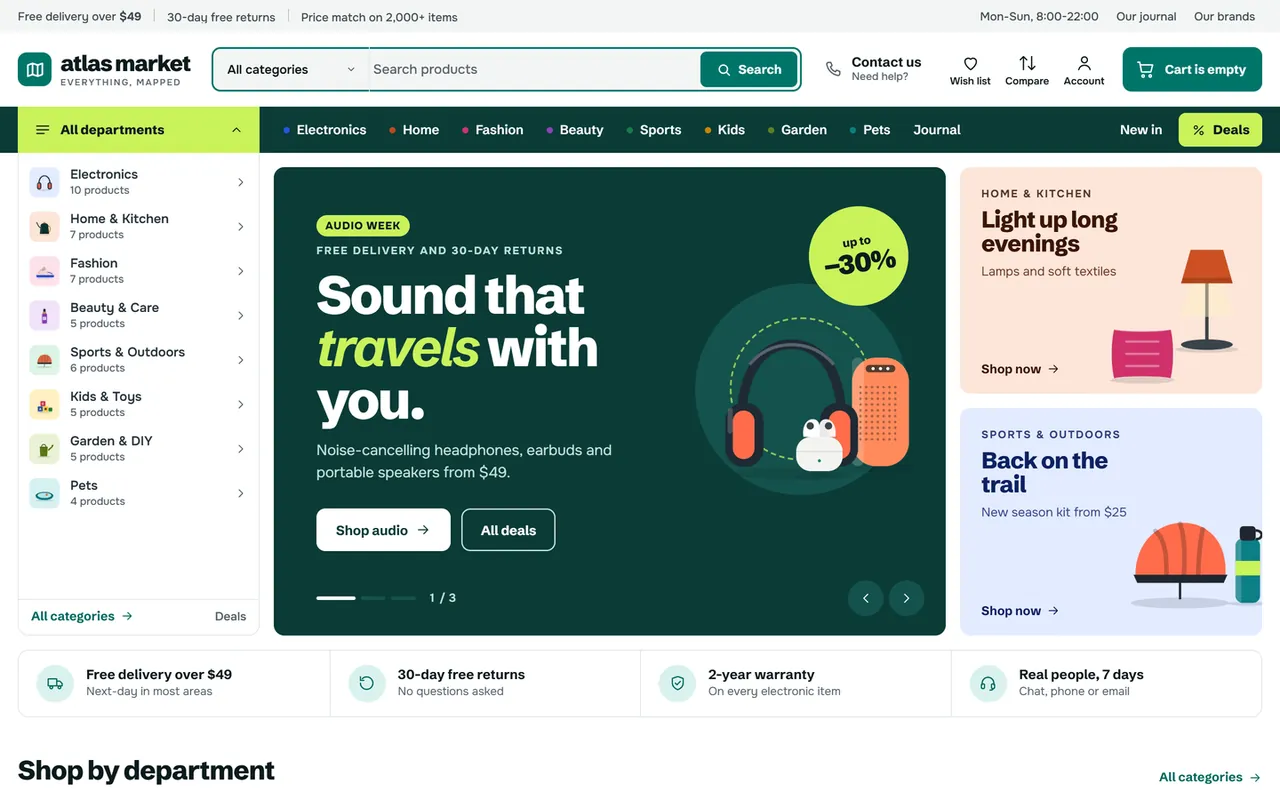
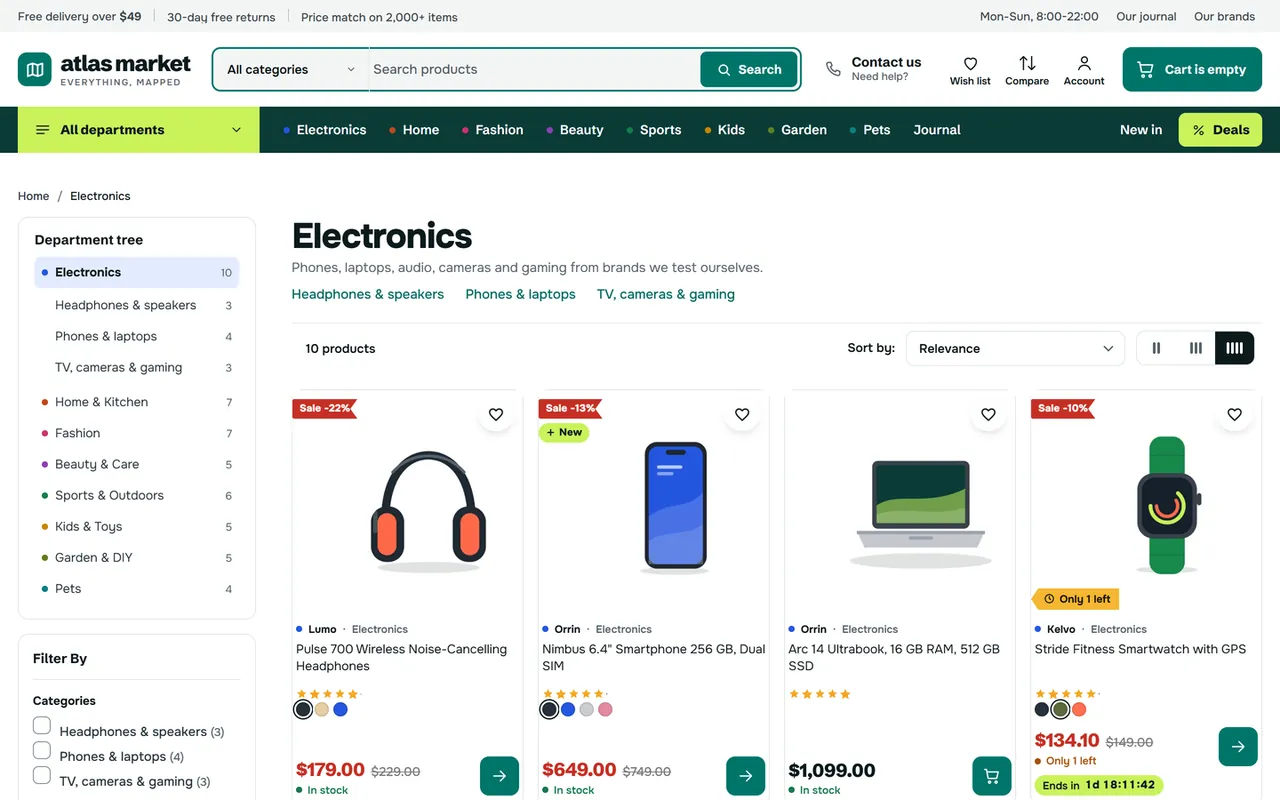
A department list beside the hero slider and a menu bar with a colour dot for every department1 of 15
The department store theme for PrestaShop 8.2 and 9.x: colour-coded departments, a department list beside the hero slider with two side promos, a big search with a department picker, tabbed product grids, a 2 + 1 + 2 offer grid, deals of the day with real countdowns, a department showcase, a promotions band and a three-column product page with a sticky buy box. Four styles (Meridian, Harbor, Citrus, Night), every colour editable. A child theme of Classic, no core changes.
PrestaShop 8.2 - 9.x
Overview
Atlas is the Kavio Labs department-store theme for PrestaShop 8.2 and 9.x, the same design as Atlas for CS-Cart, OpenCart and WooCommerce. It gives large catalogues the familiar mega-store layout: a big search header with a department selector, an All departments menu, a department list beside the hero slider, tabbed product blocks, offer grids, deals with countdowns and a three-column product page with a sticky buy box. Every department gets its own colour, so shoppers find their way at a glance. Atlas is a child theme of Classic with a companion module ("Atlas theme settings"): no core changes, no overrides.
Home page with the department list beside the hero
What you get
Department colour system: menu dots, department list markers, tiles, card labels, the category tree and the showcase panel share one colour per department; one switch uses the accent everywhere.
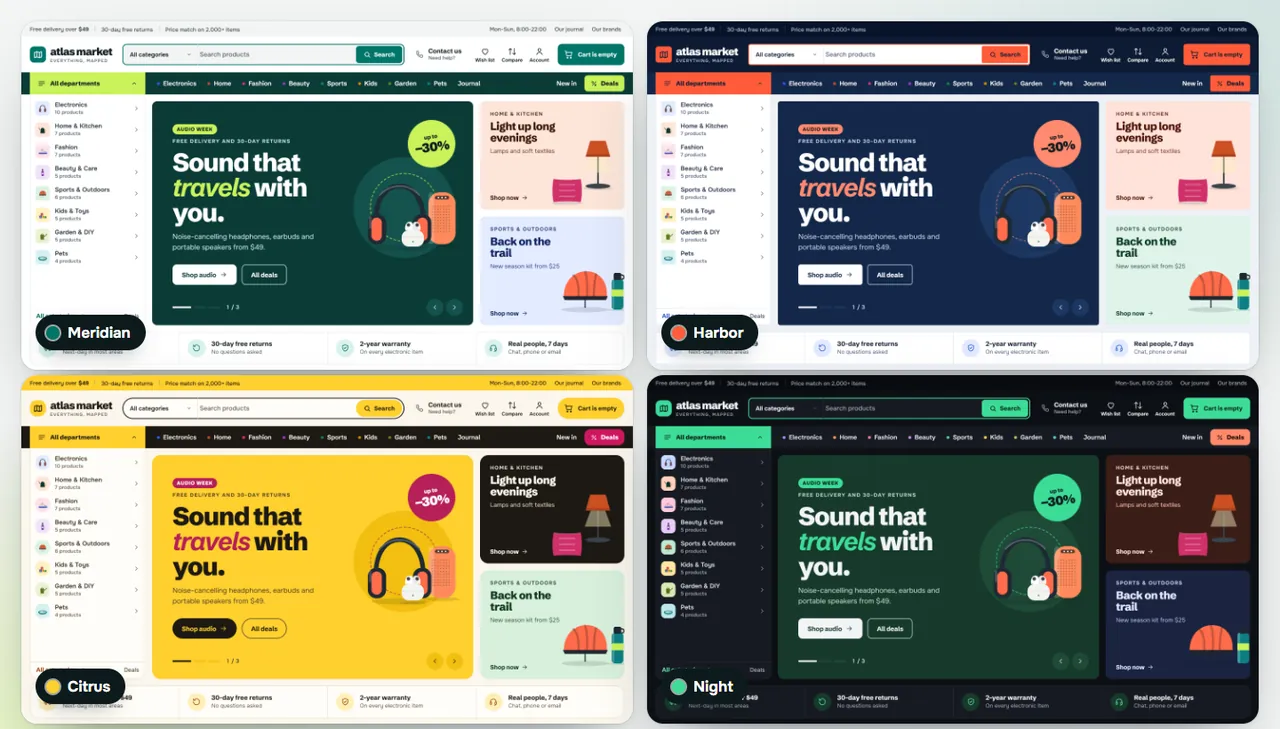
Four styles that change more than the accent: Meridian (white and teal), Harbor (navy and coral), Citrus (cream and sun yellow) and Night (dark), plus a colour editor for eight colours of your own. Text colours are corrected automatically until they are easy to read.
Header and menus: top bar with rotating messages, opening hours and service links, sticky header, search with a department selector and live suggestions, call or contact box, wish list, compare, account and a cart button with the total; a menu bar with an All departments button, department dots, mega panels (sub-category columns, popular products, brands and a banner or the best deal), a "More" panel, New in and Deals; a drawer on phones.
Home sections in any order, each on all devices, desktop and tablet only or phones only: hero with the department list and two side promos, service strip, department tiles, product tabs, 2 + 1 + 2 offer grid, deals of the day, trending scroller, department showcase, promotions band, banners, brands, journal and about text, customer reviews.
Category pages: department tree, the Faceted search filters with active filter chips, sub-category links, offer tiles inside the product grid (banner, countdown promo, video or article in a dialog), a density switch, Show more or loading while scrolling, "New in this department", and a Filter and Sort bar on phones.
Product cards: brand and department line, sale sticker with the saving, new sticker, colour dots or size chips, rating, stock line, few-left tag, deal countdown and Add to cart in one tap.
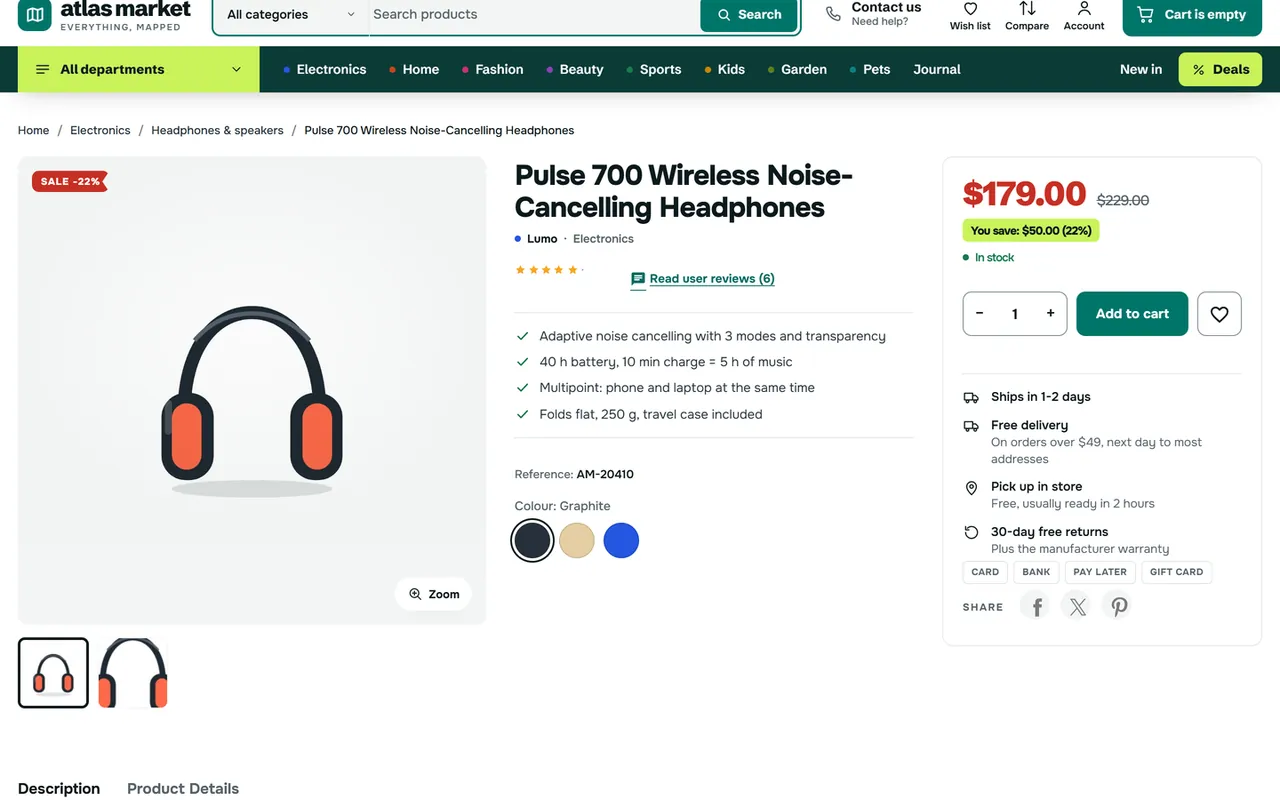
Product pages: gallery with hover zoom and the product video, the name with highlights, options, and a sticky buy box with the saving, stock line, quantity stepper, delivery time, facts and payment chips.
The four styles
Pages of this documentation
Installation
Requirements
PrestaShop 8.2.x or 9.x with the Classic theme present (it ships with PrestaShop; do not delete it, Atlas is its child theme).
PHP 7.2.5 or newer (the PHP version your PrestaShop already runs on is fine).
Recommended modules (all ship with PrestaShop): Faceted search (filters), Wishlist (blockwishlist), Product Comments (ratings), Newsletter subscription (footer band), Link list (footer columns).
Install the theme
Go to Design > Theme & Logo and click Add new theme.
Choose Import from your computer, upload kvatlas-1.0.0.zip and click Next. PrestaShop unpacks the theme into themes/kvatlas and the companion module Atlas theme settings into modules/kvatlas.
Click Use this theme next to Atlas. PrestaShop installs and enables the companion module, applies the image sizes and puts the modules in the Atlas positions (listed in the theme's config/theme.yml).
Go to Design > Image Settings and click Regenerate thumbnails so your product pictures get the new sizes (600 x 600 cards, 1000 x 1000 product page).
Go to Advanced Parameters > Performance and click Clear cache.
Licence key
Atlas works for 14 days without a key. Open Modules > Module Manager > Atlas theme settings > Configure, open the Licence tab, paste the key from your Kavio Labs account and click Save key. The licence is checked from this page (and once a day), never on a storefront request. Without a valid key the storefront keeps working with the Meridian style; the home sections, the menus, live search, compare and the other extras are switched off until the key is valid. Your settings are kept. (The PrestaShop Addons edition has no licence key and makes no outbound calls.)
First steps
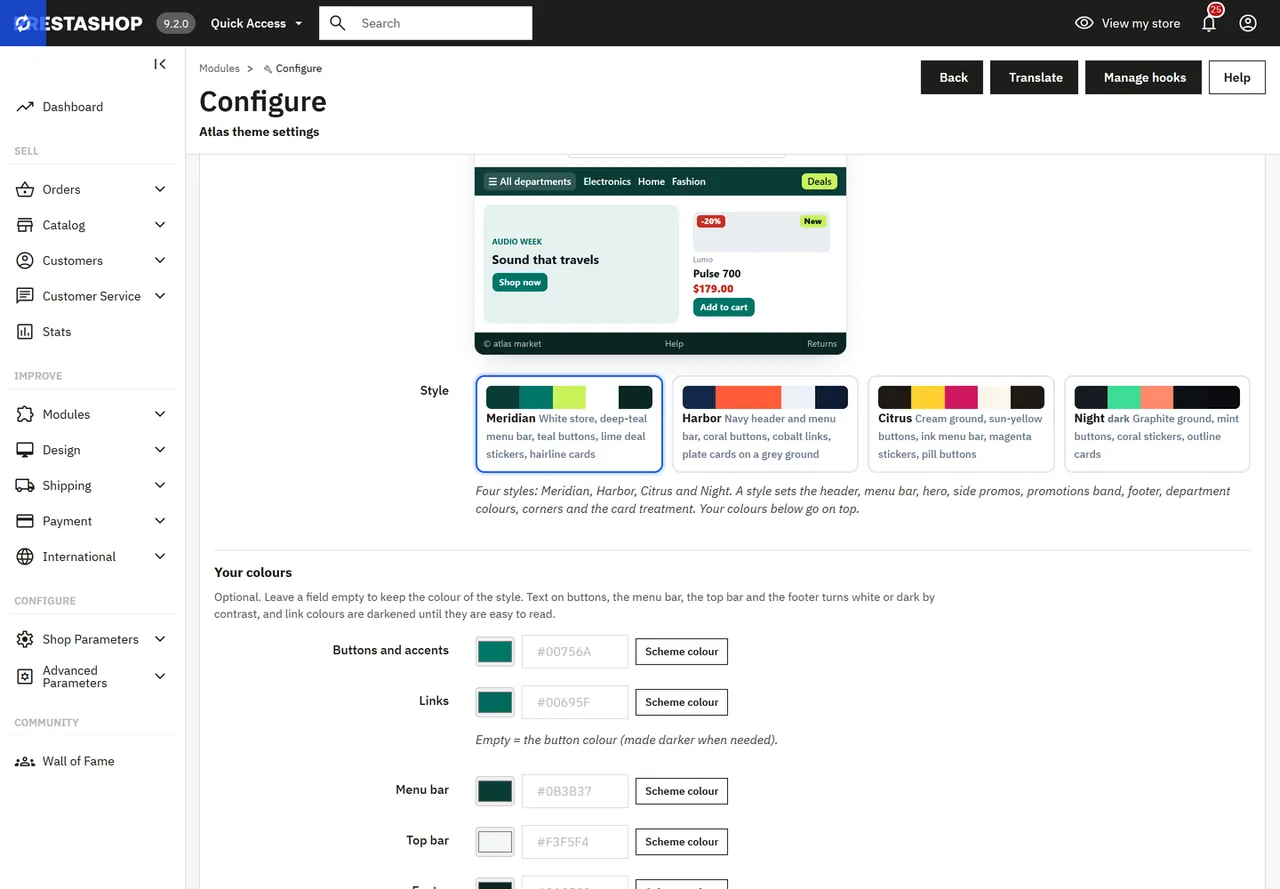
Style and colours. On the Design tab pick a style (Meridian, Harbor, Citrus or Night) and set your own colours if you like. The preview follows while you choose. Add a text logo and tagline, or keep your logo picture.
Departments. On the Header & menu tab choose the departments (empty = the sub-categories of Home). Each one gets a colour by its position. In Menu names, icons, labels and banners give a department a shorter menu name ("Home" for "Home & Kitchen"), a small label such as "New" or "-20%" and a banner for its mega panel.
Department pictures. Give your top categories a picture (Catalog > Categories): it appears in the department list, the department tiles and the drawer. Cut-out pictures on a transparent background look best.
Home page. Fill the hero slides, the side promos and the other sections on the Home page and Merchandising tabs. Upload pictures directly in the picture fields, or on the Pictures tab for the list editors (copy the path it shows).
Deals. Create specific prices or catalogue price rules with an end date: the countdowns use the real dates.
Product facts. Add a product feature named Ships in with values such as "1-2 days" (the first line of the buy box) and, for a product video, a feature named Video with a YouTube, Vimeo or .mp4 / .webm link.
Image sizes
Atlas sets these image types: home_default 600 x 600 (cards), large_default 1000 x 1000 (product page), medium_default 452 x 452, small_default 98 x 98, cart_default 125 x 125 and category_default 600 x 600. Product pictures on a white or transparent background look best: the cards and the gallery blend them into the soft picture well of the style.
Uninstall
Switch to another theme in Design > Theme & Logo, then delete Atlas there. Uninstalling the module Atlas theme settings removes its settings; your products, categories and pictures are not touched.
Configuration
Everything is on one page: Modules > Module Manager > Atlas theme settings > Configure. Each tab has its own fields; Save at the bottom stores all tabs at once. Titles accept *stars* around words to show them in the highlight colour, for example Sound that *travels* with you.
Links accept cat:ID (category), product:ID, cms:ID (CMS page), brand:ID, page:prices-drop (or new-products, best-sales, manufacturer, sitemap, contact, stores), a path starting with / or a full URL.
The settings page
Design
Setting
What it does
Style
Meridian, Harbor, Citrus or Night. A style sets the header, menu bar, hero, side promos, promotions band, footer, department colours, corners and the card treatment.
Your colours
Optional colours on top of the style: buttons, links, menu bar, top bar, footer, page background (a dark colour switches the store to dark surfaces), highlight, sale prices. Leave empty to keep the style's colour.
Text logo, tagline
Shown with the map mark instead of the logo picture when filled.
Department colours
Every department in its own colour; off = the accent everywhere.
Product cards
The card treatment of the style, or hairline, plate, minimal or outlined.
Animations
Hover lifts and the hero progress line (never shown to visitors who prefer reduced motion).
Header & menu
Top bar on or off, three messages (*stars* make a word bold), service links, opening hours, phone number and label (empty = a "Contact us" box), sticky header, search placeholder, the department select of the search and live search.
Setting
What it does
Departments
Category ids of the menu bar and the department list in this order; empty = the sub-categories of Home. The position gives the department colour (1 to 8, then again).
Menu bar: number of departments
Items that do not fit go into a "More" panel.
All departments
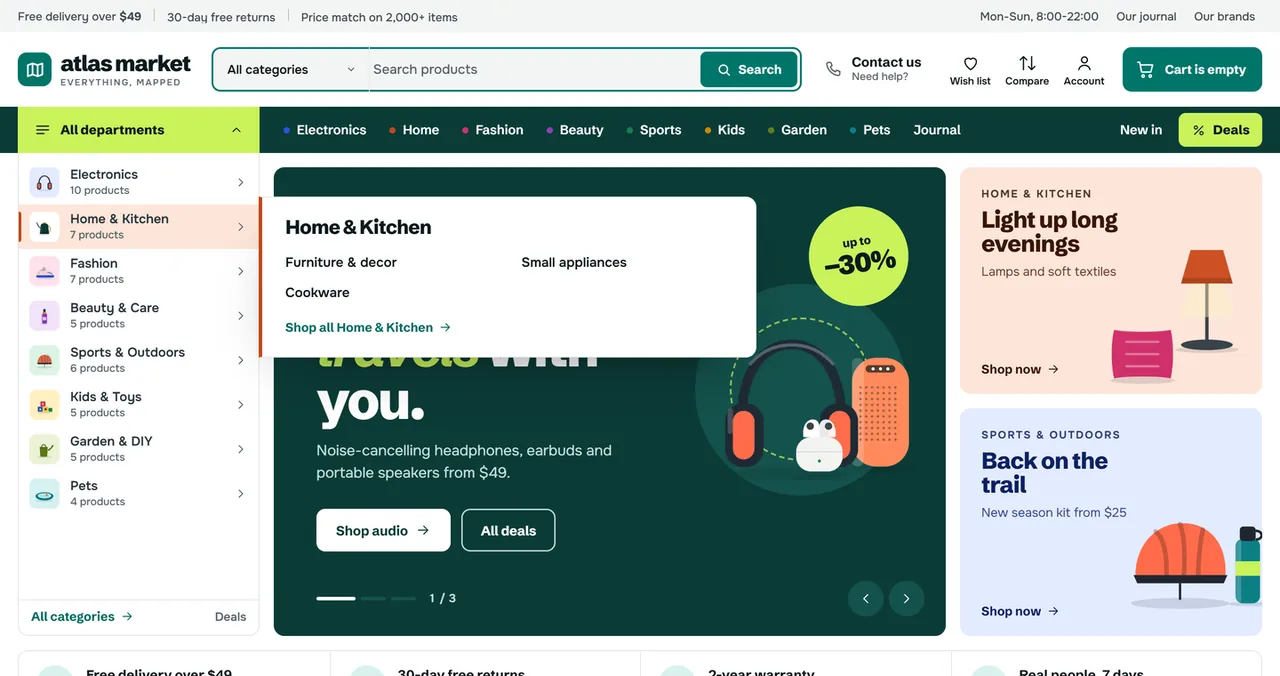
The button at the start of the menu bar with every department, its picture and product count, and the sub-categories in a flyout.
Department list beside the hero
On the home page the list stands open on the left of the hero.
Mega panel: popular products, brands, best deal
Parts of the mega panels.
Brands item, New in, Deals, extra link
Labels and targets of the extra menu items (empty label = hidden).
Menu names, icons, labels and banners
One row per department: a shorter name for the menu bar, an icon (when the category has no picture), a label and its colour, a banner (picture, title, text, link) in the mega panel.
Home page
Atlas home sections on or off (off = only the modules of displayHome) and the section order (comma list of hero, usp, cats, tabs, mosaic, deal, trend, showcase, promos, banners, brands, blog, reviews). Every section has Show and Show on (all devices, desktop and tablet only, phones only).
Section
Settings
Hero
Seconds per slide; up to three slides with a label, a small line, title, text, cut-out picture, two buttons and a round badge ("up to" and "-30%" separated by a bar); two side promos with a label, title, text, link and picture.
Service strip
Up to four promises with an icon, title and text.
Department tiles
Title, category ids (empty = the departments), number of tiles. Each tile shows the product count and three sub-categories.
Product tabs
Title, up to four tabs with a title and product ids (defaults: best sellers, best sellers, discounted, newest), products per tab.
Deals of the day
Small line, title, product ids (empty = discounted products, ending first), number; optional product of the day with a countdown and the stock bar.
Trending scroller
Title, product ids (empty = best sellers), number.
Department showcase
Category, small line, links (name and target per line; a target can be a search word), button, picture, product ids.
Merchandising
Section
Settings
Offer grid
Title, text, link; up to five tiles (label, title, text, badge, link text, picture, link, size, colour). Give the second tile the large size for the 2 + 1 + 2 grid.
Promotions band
Title, text, link; promotions with a label, title, note, badge, picture, link and end date ("N days left"; hidden after the date).
Banners
Two or three picture banners.
Brands
Title and number; brands as word marks (or their logos).
Journal and about
Three stories (title, date or label, text, link, picture; a cms:ID link opens the page in a dialog) and the about text (paragraphs; a line starting with # is a sub heading).
Customer reviews
Average, text and up to three quotes (quote, name and product separated by bars). Use real figures only.
Category pages
Department tree, sub-categories (links, chips, tiles or hidden), pagination (Show more, loading while scrolling or page numbers), products per row, the Filter and Sort bar on phones, "New in this department" and the offer tiles: one row per tile with the category ids, position, size (1 or 2 cells), type (banner, promo with countdown, video, article), label, title, text, picture, button, link, end date, video link, CMS page id and colour.
Product cards: brand and department line, second picture on hover, colour swatches and size chips (with the attribute groups shown as chips), quick view, compare, Add to cart on cards, deal countdowns, best seller sticker, few-left quantity.
Product pages
Highlights (the bullet points of the description under the name), hover zoom, sticky Buy bar on phones, video feature name, delivery time feature name, in-stock line, the optional cut-off line with delivery dates, buy box facts (icon, title, text), payment chips and frequently bought together.
Footer & mobile
The discount band over the footer (with the Newsletter module: its form with your title and text; without it a button to the registration), footer about text, payment chips, social links (one "Name|URL" per line), the mobile tab bar and the back to top button.
Pictures and Licence
Pictures uploads a picture into img/cms/kvatlas/ and shows its path for the list editors. Licence (own-site edition) holds the licence key and its status.
Using Atlas
Styles and colours
Start from the style closest to your brand, then change only what you need in Your colours. The menu bar, top bar and footer pick white or dark text by contrast; links and prices are darkened until they read well. A dark page background switches the whole store to dark surfaces (product pictures stay on light wells).
Departments
The departments are your top categories (or the ids in Header & menu > Departments). Each gets a colour by its position: the dot in the menu bar, the marker in the department list, its tile on the home page, the department line on product cards, the category tree and the showcase panel. Give each department a picture (a cut-out on a transparent background) for the department list and the tiles.
Department colours
Offer tiles in the product grid
An offer tile takes a place in the product grid of the category pages you choose:
Banner: a label, title, text, picture and a button with a link.
Promo with countdown: the same with a countdown to the end date; the tile hides itself after it.
Video: a picture with a play button; the video (YouTube, Vimeo, or an .mp4 / .webm file) plays in a dialog.
Article: a CMS page opens in a dialog over the grid, with a link to the full page.
Position 1 is the first place of the grid; size 2 spans two columns. Tiles show on the first page of a list.
Category page
Deals and promotions
The deals of the day, the cards and the product page use the real end dates of specific prices and catalogue price rules. The optional product of the day counts down to the end of its discount (or to midnight). The promotions band shows your running promotions with the days left.
Search with departments
Shoppers can choose a department next to the search field: the live suggestions and the results page are limited to that department.
Product page
The gallery, the information column (name, department line, rating, highlights, options) and the buy box (price, saving, stock, quantity, Add to cart, wish list, delivery time, facts, payment chips) sit side by side on wide screens. The delivery time comes from the product feature Ships in; a product feature Video with a link adds a video to the gallery.
Product page
Phones
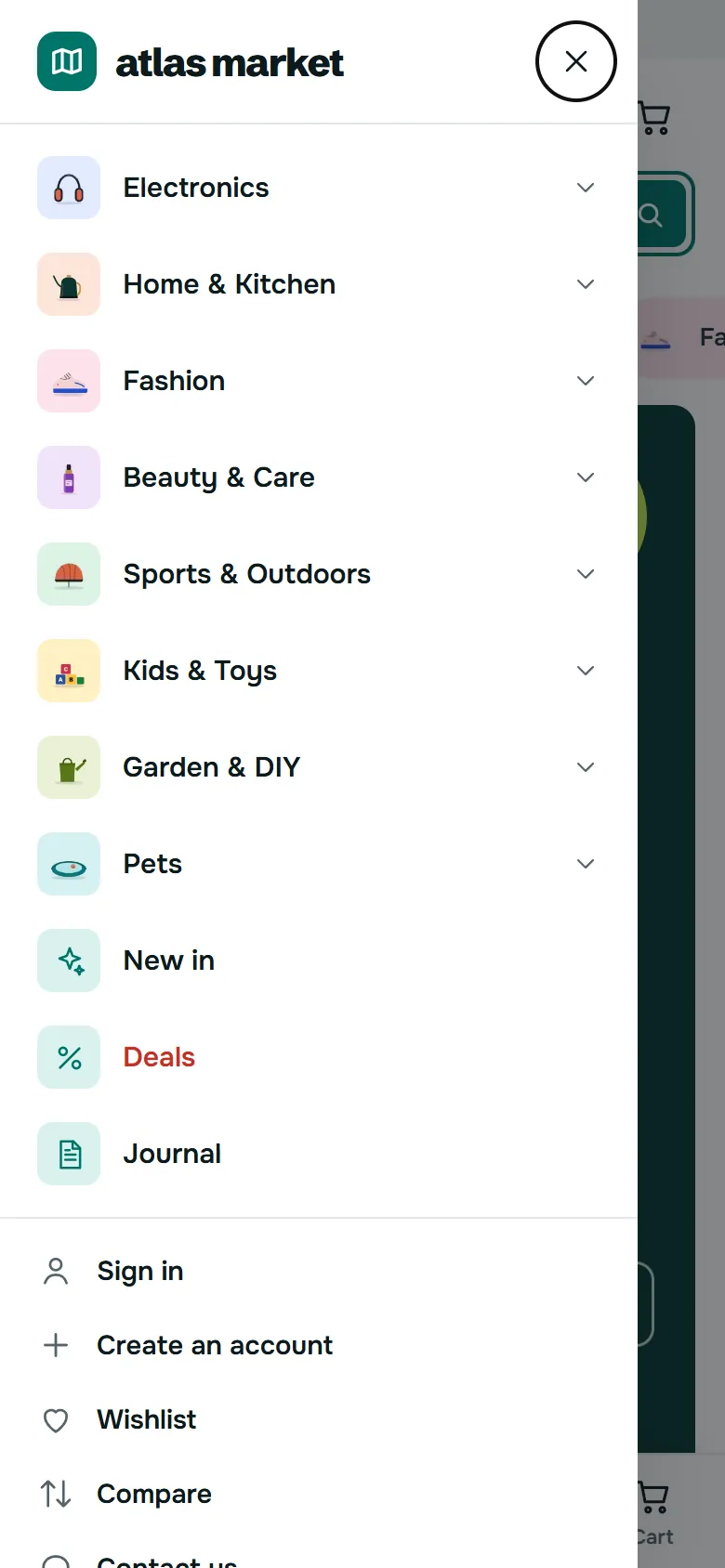
A bottom tab bar (home, catalog, search, wish list or account, cart), a drawer menu with the department pictures, a Filter and Sort bar on category pages (the filters open in a drawer) and a compact sticky Buy bar on product pages.
On phones
Developer notes
Structure: theme themes/kvatlas (child of Classic, config/theme.yml) and module modules/kvatlas (composer psr-4 autoload of KavioLabs\Module\Atlas\ in src/).
Settings: one JSON configuration value KVATLAS_SETTINGS per shop context; list settings are arrays inside it.
Colours: the module prints the style as CSS custom properties (--at-acc, --at-band, department colours --at-d1 to --at-d8 ...) in a <style id="at-colors"> element of the page head (displayHeader); the html element carries data-at-scheme and the flags in data-at (mono, norail, still, card-<treatment>). Override any token in your own CSS.
Smarty variables: $kvat (menus, icons, flags, texts, promo cells, product video) is assigned in actionFrontControllerSetVariables; presented products get at_img2, at_ends, at_opts, at_sizes, at_low, at_hit, at_off, at_slot (department colour) and at_dept (actionPresentProduct / actionPresentProductListing).
Hooks of the module: displayHeader, actionFrontControllerSetMedia, actionFrontControllerSetVariables, actionPresentProduct, actionPresentProductListing, displayWrapperTop (home sections), displayProductPriceBlock (offer countdown), displayProductAdditionalInfo (buy box facts, payment chips), displayFooterProduct (frequently bought together), productSearchProvider (search limited to a department), category and product save hooks (menu cache in var/cache/<env>/kvatlas/).
Theme hooks: displayAtlasMenu holds ps_mainmenu (shown only without the companion module).
Front controllers: module/kvatlas/search (live search JSON), module/kvatlas/compare (comparison page; the list lives in the browser), module/kvatlas/article (CMS page JSON for the dialogs).
JavaScript: assets/js/atlas.js runs on top of the Classic theme.js and core.js and listens to the core events (updateCart, updatedProduct, updateProductList); settings in window.kvatlas.
Templates overridden in the theme: header, footer, layout, product miniature, product list, list bar, active filters, category header and listing, product page, prices, flags, gallery, checkout header, and the module templates of the Customer sign-in, Shopping cart, Faceted search (active filters), Newsletter subscription and the 9.2 one-page checkout.
FAQ
Does Atlas change PrestaShop core files or use overrides?
No. It is a child theme of Classic with a companion module that uses hooks only.
Which PrestaShop versions are supported?
PrestaShop 8.2.x and 9.x (tested on 8.2.8 and 9.2.0), including the 9.2 one-page checkout.
How are the department colours chosen?
By the position of the department in the menu (eight colours, then they repeat). Turn Department colours off on the Design tab to use the accent everywhere.
My menu is empty. The menu is built from the sub-categories of Home (or the ids in Header & menu > Departments). Check that the categories are active, then clear the cache. Without the companion module the stock Main menu module is shown instead.
The countdowns do not show. Countdowns need a discount with an end date (a specific price or a catalogue price rule).
Can I hide a home section on phones?
Yes: every section has a "Show on" setting (all devices, desktop and tablet only, phones only).
Is the demo store included?
No. The "atlas market" store in the screenshots is fictional and uses our own illustrations; the design, styles and settings are included.
What happens when the licence expires?
Updates and support stop. With the own-site edition, a key that is no longer valid switches the extras off after the grace period; the storefront keeps working with the Meridian style.
The multipurpose flagship theme for PrestaShop 8.2 and 9.x: five ready store styles (Fashion, Electronics, Home & furniture, Beauty, Grocery) switchable in one click from one settings page, three header and two footer layouts, four hero layouts, a mega menu with pictures and brands, live search with pictures, AJAX filters with Faceted search, quick view, wishlist and compare, one-tap add to cart, a sticky add-to-cart bar, frequently bought together and a mobile tab bar. A child theme of Classic, no core changes.
Sell by weight, length, area or volume on PrestaShop 8.2 and 9.x: amount field with quick amounts and live total, exact decimal stock and real shipping weight. No overrides.
Shoppers propose a price per item; the shop accepts, counters or declines, or rules answer at once. The agreed price is a one-time specific price for that customer's cart.