Import and update products from supplier CSV, XML and JSON feeds in PrestaShop 8.2 or 9.x on a schedule: URL, FTP, SFTP or upload; field mapping with real sample values; match by reference, EAN-13, supplier reference or MPN; markup by price band and category with .99 rounding; a price guard that holds back big drops and below-cost prices; combinations from feed rows; stock-only syncs; products missing for N runs set to stock 0 with a safety limit; a dry-run preview with old and new values, run history with a row log and undo. No overrides, no storefront hooks.
On saleVersion 1.0.0Compatible with PrestaShop 8.2 – 9.x No core file edits
Built forPrestaShop
CSV, XML, JSON and uploaded supplier feeds in; prices with your margin, current stock and complete products out1 of 10
Import and update products from supplier CSV, XML and JSON feeds in PrestaShop 8.2 or 9.x on a schedule: URL, FTP, SFTP or upload; field mapping with real sample values; match by reference, EAN-13, supplier reference or MPN; markup by price band and category with .99 rounding; a price guard that holds back big drops and below-cost prices; combinations from feed rows; stock-only syncs; products missing for N runs set to stock 0 with a safety limit; a dry-run preview with old and new values, run history with a row log and undo. No overrides, no storefront hooks.
PrestaShop 8.2 - 9.x
Overview
Keep your catalogue in sync with your suppliers. Point the module at a supplier feed (CSV, XML or JSON from a URL, FTP, SFTP, a file on your server or an upload), map the feed fields to your product fields once, add your price and stock rules, and let it create and update products on a schedule. A dry-run preview shows the old and new values before anything is saved, a price guard holds back suspicious price drops, every run is logged with a row log, and any run can be undone.
One module for PrestaShop 8.2 and 9.x. It runs on its own, from one cron URL, for as many suppliers as you have.
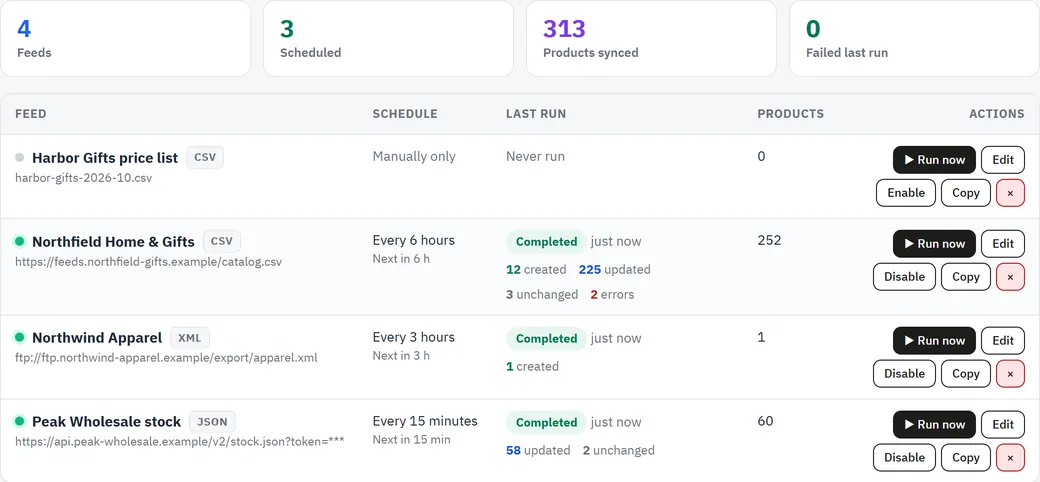
Feed list with schedules, last results and products per feed
Key features
Sources: HTTP and HTTPS URLs (with optional basic authentication), FTP and FTPS, SFTP, a file on your server and manual upload. gzip-compressed feeds are unpacked automatically.
Formats: CSV with delimiter and encoding detection, XML with a product element and XPath field paths (price, @id, images/image, param[@name="Color"], g:price), JSON with dot paths (data.products, price.amount).
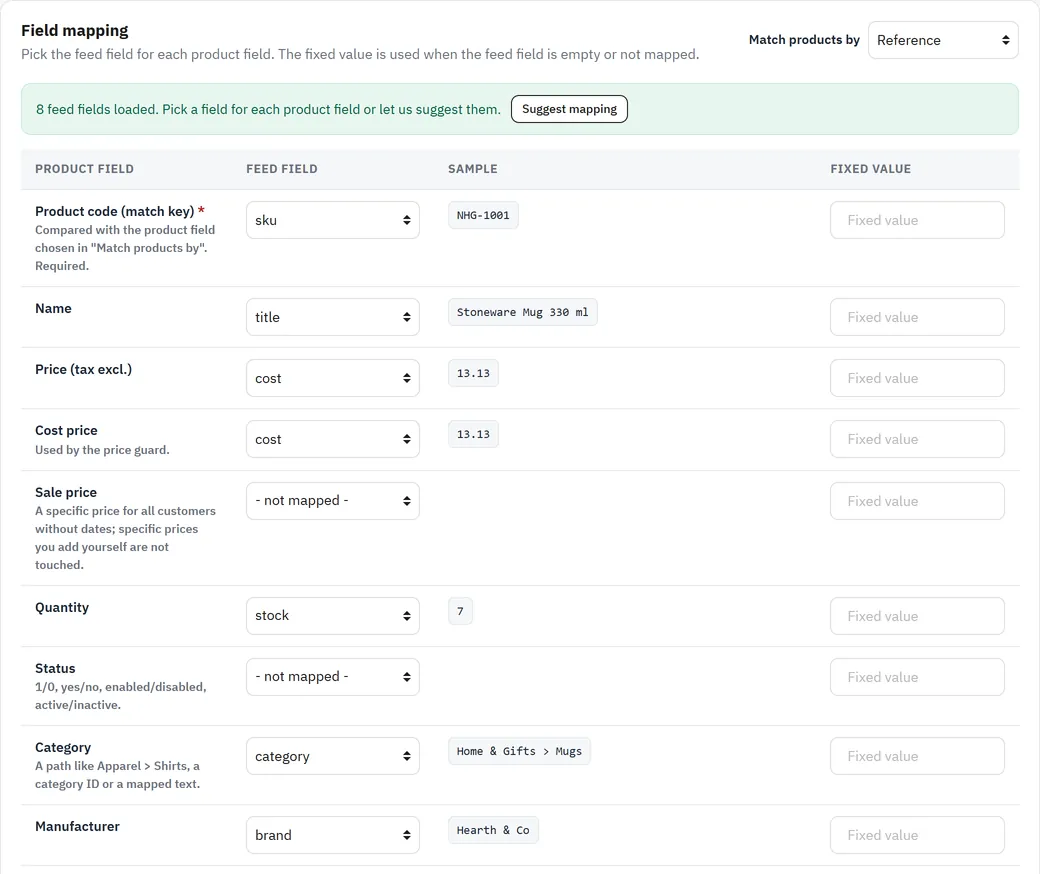
Field mapping with real samples: load the fields from the feed and see a sample value next to each one; Suggest mapping fills in the obvious ones; fixed values for fields the feed does not have; presets to reuse a setup.
Product fields: reference, EAN-13, supplier reference or MPN as the match key, name, price (tax excl.), cost price, sale price, quantity, status, category, manufacturer, summary, description, meta title and description, reference, supplier reference, EAN-13, MPN, UPC, main and additional images, weight and any number of features.
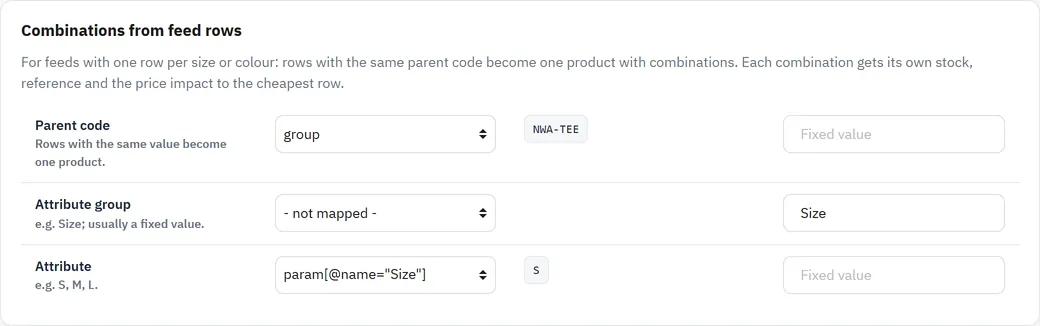
Combinations from feed rows: feeds with one row per size or colour become one product with combinations: stock and reference per combination and the price impact to the cheapest row.
Categories: paths like Home & Gifts > Mugs are found or created, or sent to a store category through a mapping table; a default category catches the rest.
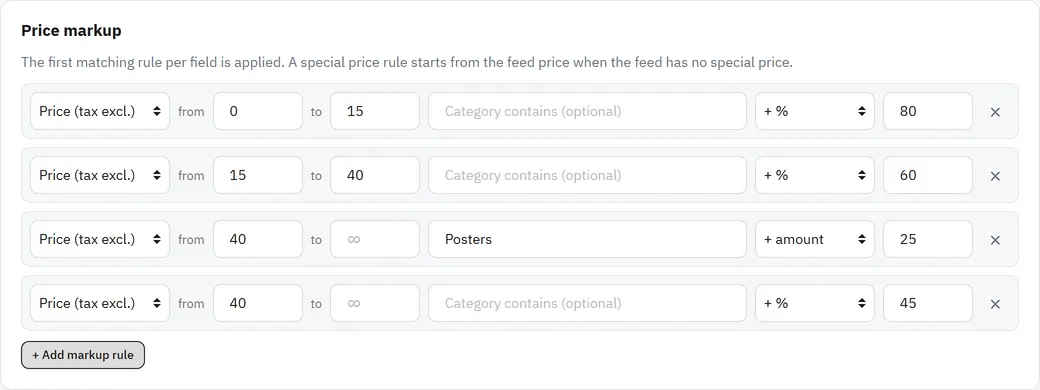
Price and stock rules: markup by price band and category, in percent or a fixed amount, a sale price from the feed price, rounding to cents, whole numbers, .99, .95 or .90, a stock threshold and cap, and value replacements such as "in stock" → 10.
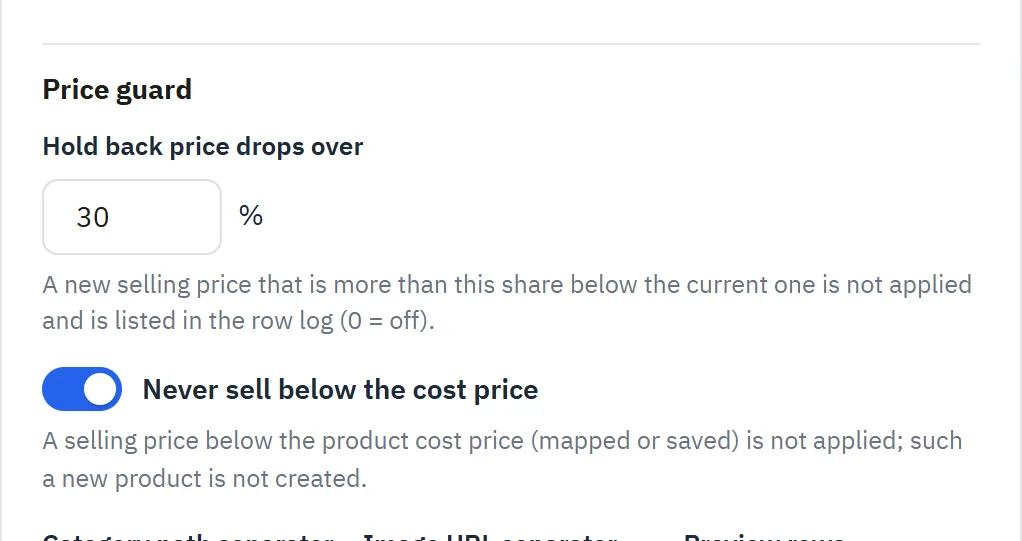
Price guard: a new price that drops more than your limit (for example 30 %), or a price below the cost price, is held back and listed in the row log. Stock and the other fields still update.
Update modes: create and update, or update only; choose which fields change on existing products (for example only price and stock); unchanged rows are skipped.
Dropped products: products missing from the feed for a number of complete runs get stock 0 or are disabled, with a safety limit against broken files. A product that comes back is enabled again.
Dry run: the preview shows what each row would do, with old → new values. Nothing is saved.
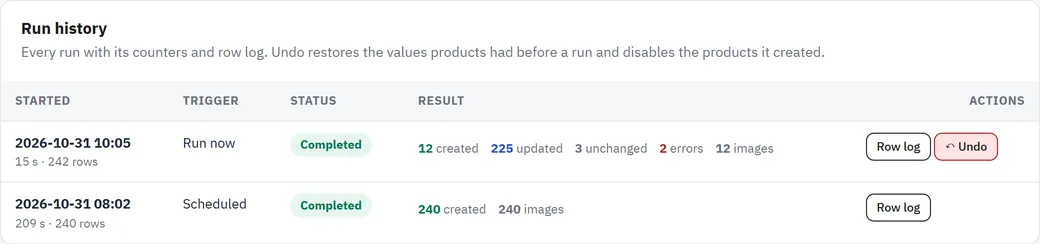
Run history and undo: counters, a row log with the reason for each warning, and Undo restores the previous prices, stock, texts, combinations and images and disables the products a run created.
Scheduling: an interval per feed (15 minutes to once a day) and one cron URL for all feeds. Large feeds run in short steps that continue on the next call, and a lock prevents overlapping runs.
Images: downloaded in their own phase after the rows, with all your image sizes generated, and again only when their URLs change; your own product photos stay.
Safe by design: feed and image URLs that point to your own server or a private network are refused, downloads have size and time limits, XML files with a DOCTYPE are refused (no XXE), passwords are stored encrypted, and a product is never created with a missing price.
Clean install: back office only, no hooks on the storefront, no overrides and no core changes.
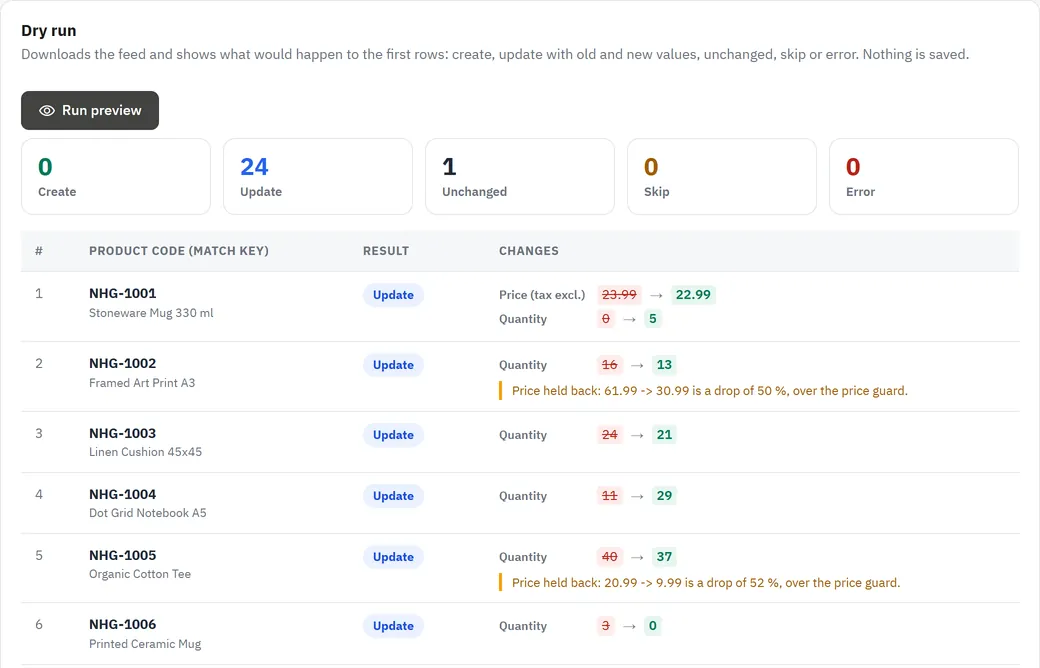
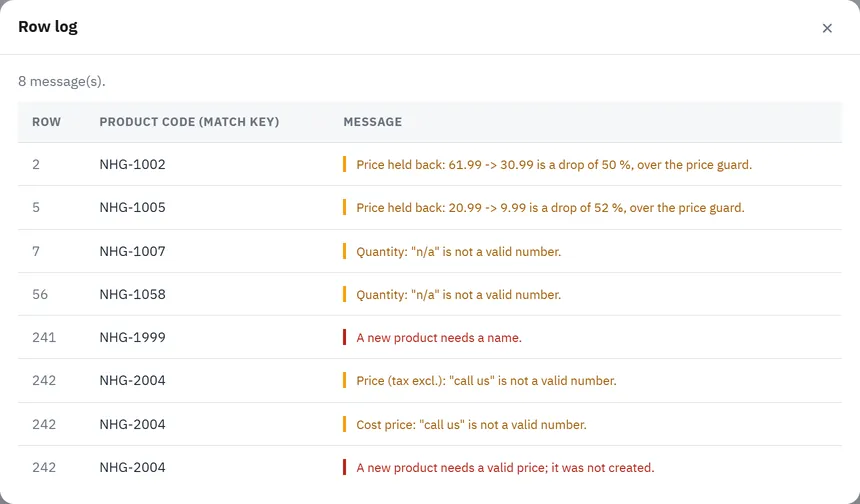
Dry-run preview with old and new values and two prices held back by the price guard
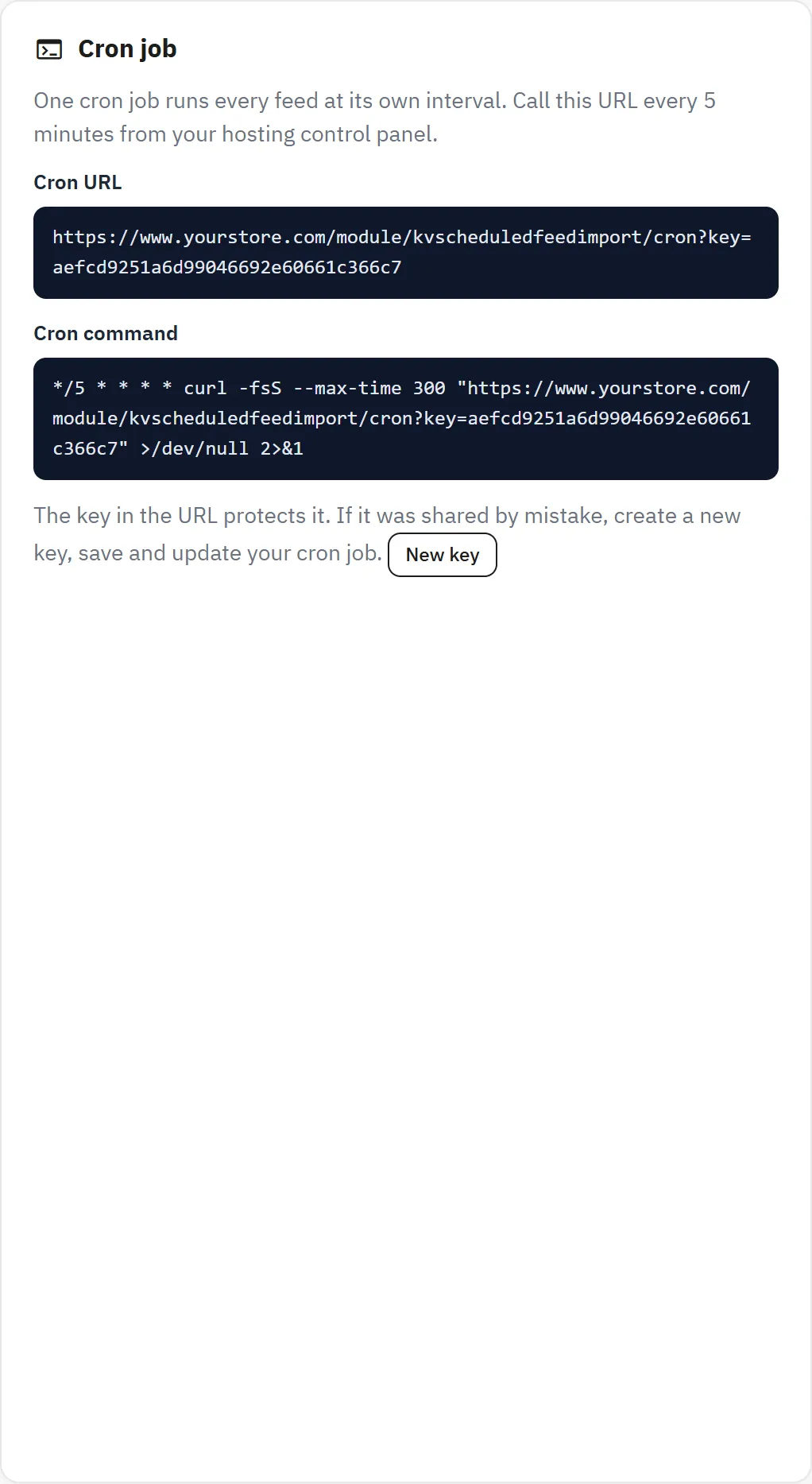
Copy the exact URL from the settings page; it contains your secret key. wget -q -O /dev/null "<URL>" works the same, and so does the PrestaShop "Cron tasks manager" module. Each call keeps importing for the Time per cron call set in the settings and continues where the last call stopped, so feeds with tens of thousands of rows work on normal hosting.
Without a cron job you can still run every feed with Run now in the back office.
Updating
Upload the new zip the same way (Module Manager > Upload a module). Your feeds, mappings, presets and run history stay; upgrade steps run automatically.
Uninstalling
Module Manager > Scheduled Supplier Feed Import > Uninstall removes the feeds, presets, run history, settings, the menu entry and the work files in var/modules/kvscheduledfeedimport/. Products, combinations, categories, manufacturers, features, attributes and images that feeds created stay in your store.
Configuration
Open Catalog > Feed import > Settings (or Configure in the Module Manager). These settings apply to all feeds; each feed has its own options on its feed page (see Usage).
Cron job card on the settings page
General
Setting
Default
Description
Status
Enabled
Off: the cron skips all feeds and Run now is unavailable. Feeds, history and undo stay available.
Maximum feed size (MB)
50
Larger downloads and uploads are stopped. Compressed (.gz) feeds count with their unpacked size.
Download timeout (seconds)
60
Time limit for downloading one feed file. Images use at most 30 seconds and 10 MB each.
Rows per step
50
Imports run in short steps (also in the back office). Lower it on slow hosting.
Time per cron call (seconds)
50
How long one cron call keeps importing. Keep it below the PHP time limit of your cron.
Runs kept per feed
30
Older runs, their row logs and their undo data are deleted.
Allow feeds from private network addresses
No
Feed and image URLs that point to this server, localhost or a private network (10.x, 172.16–31.x, 192.168.x, link-local and similar IPv4 and IPv6 ranges) are refused. Turn it on only if your supplier feed is on your own network.
Cron job
The card shows the cron URL and a ready-made cron command. The key in the URL protects it; if it was shared by mistake click New key, save and update your cron job. See Installation.
Permissions
The pages use the permissions of the Feed import menu entry (Advanced Parameters > Team > Permissions). Employees with View can see feeds, history and row logs; saving, previews, runs, undo and the settings need Edit.
Multistore
Each feed writes prices, stock and new products to one shop (Import options > Shop, shown when multistore is on). Use one feed per shop if your shops need different prices.
Own-site edition only: license
The zip bought on kaviolabs.com has a License card on the settings page: enter your key (KAVIO-XXXX-XXXX-XXXX-XXXX) and save; Check now verifies it at once. Without a key the module works fully for 14 days. Without a valid license new imports stop (scheduled runs and Run now); feeds, the preview, the history, undo and your products are not affected. The check runs once a day in the back office or from the cron and sends only the key, the module ID and version and your shop's host names. The PrestaShop Addons edition has no license card.
Usage
Go to Catalog > Feed import. The list shows every feed with its source, schedule, the result of the last run, the next run and the number of products it manages. Add feed opens a new feed; each row has Run now, Edit, Enable/Disable, Copy and Delete. The feed editor has six steps.
1. Source
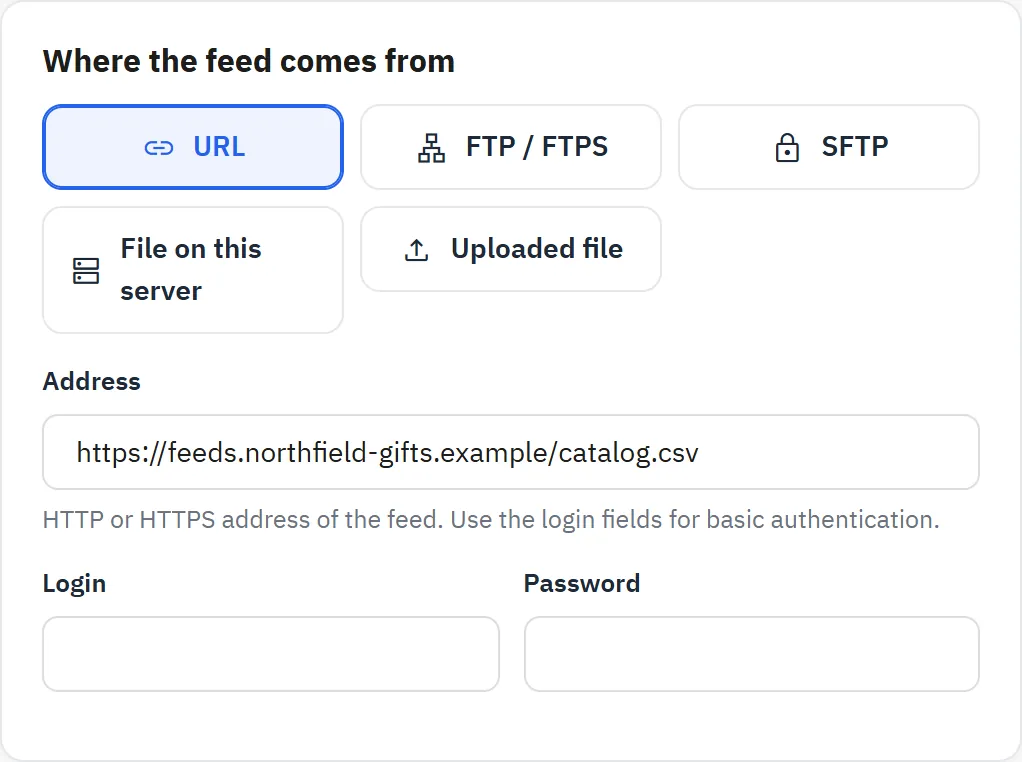
Source of a feed
Name, Run this feed on its schedule (disabled feeds are never run by the cron; Run now still works) and Run automatically: manually only, every 15 or 30 minutes, every 1, 3, 6 or 12 hours, or once a day.
Where the feed comes from:
URL: an HTTP or HTTPS address, with an optional login and password for basic authentication.
FTP / FTPS: ftp://host/path/file.csv or ftps://..., with the FTP login.
SFTP: sftp://host/path/file.xml, with the SFTP login (needs PHP cURL with SSH or the ssh2 extension).
File on this server: a path relative to the shop folder, for example feeds/supplier.csv (allowed: .csv, .txt, .tsv, .xml, .json, .gz).
Uploaded file: drop a file on the upload box; upload a new one whenever you want to import it again.
Format:
CSV: the first row holds the column names. The delimiter (comma, semicolon, tab, pipe) and the encoding (UTF-8, Windows-1252, ISO-8859-1) are detected, or choose them.
XML: the Product element selects the element that holds one product, for example //product, //offer or /catalog/items/item.
JSON: the dot path to the product list, for example data.products (empty when the file is the list itself or an object with one list).
Passwords are stored encrypted and never shown again; leave the field empty to keep the saved one.
Click Save and load fields from the feed: the feed is downloaded once and its fields are listed with a sample value on the mapping step.
2. Field mapping
Field mapping with sample values
For each product field pick the feed field (or type a field name or path for anything not in the list) and optionally a fixed value, used when the feed field is empty or not mapped. Suggest mapping picks the usual names (sku, title, price, stock, brand, image ...); check them before running.
Product code (match key) is required. Match products by Reference, EAN-13, Supplier reference or MPN decides which product field it is compared with. A row updates the product with the same code; otherwise a new product is created with that code.
Price (tax excl.) is the price after your rules. Cost price fills the product's wholesale price and is used by the price guard.
Sale price: an open-ended specific price for all customers that the module manages. Specific prices you add yourself are never touched.
Category: a path like Home & Gifts > Mugs is found by name or created; a numeric value is taken as a category ID. The Category mapping table sends exact feed category texts to a store category instead.
Manufacturer: found by name, created when allowed.
Main image URL and Additional image URLs: several URLs can come from one field (separated by | by default) or from repeated XML elements. Feed images are added after the images the product already has.
Features: add rows to fill features from Catalog > Attributes & Features > Features. Existing feature values are reused, new ones are created.
XML paths are XPath expressions relative to the product element: price, @id, price/@currency, images/image, param[@name="Color"], g:price. JSON paths use dots: price.amount, images.0.
Combinations from feed rows
For feeds with one row per size or colour, map Parent code (rows with the same value become one product), Attribute group (usually a fixed value such as Size) and Attribute. The product gets one combination per value with its own stock and reference and the price impact to the cheapest row; the product stock is the sum. Values that leave the feed keep their combination with stock 0. Attribute groups and attributes are created when missing (can be switched off).
Combinations from feed rows
Presets
Save as preset stores the format, mapping, rules and import options. Choose a preset and click Apply to copy it into another feed.
3. Price and stock rules
Markup rules
Price markup: rules with Apply to (price or sale price), a feed price range, an optional Category contains text and a percentage or fixed amount. The first matching rule per field is applied. A sale price rule starts from the feed price when the feed has no sale price. The example box shows the result for the first feed price.
Round prices: to cents, whole numbers, or up to .99, .95 or .90.
Treat stock below this as 0 and Show at most (a cap).
Replace values: change feed values before they are used, matching the whole value or a part of it, for example in stock → 10, yes → 1.
Number formats such as 1,234.56, 1.234,56, 12,5 and $19.90 are understood. Status values can be 1/0 or words like yes, no, enabled, disabled, active, hidden.
4. Import options
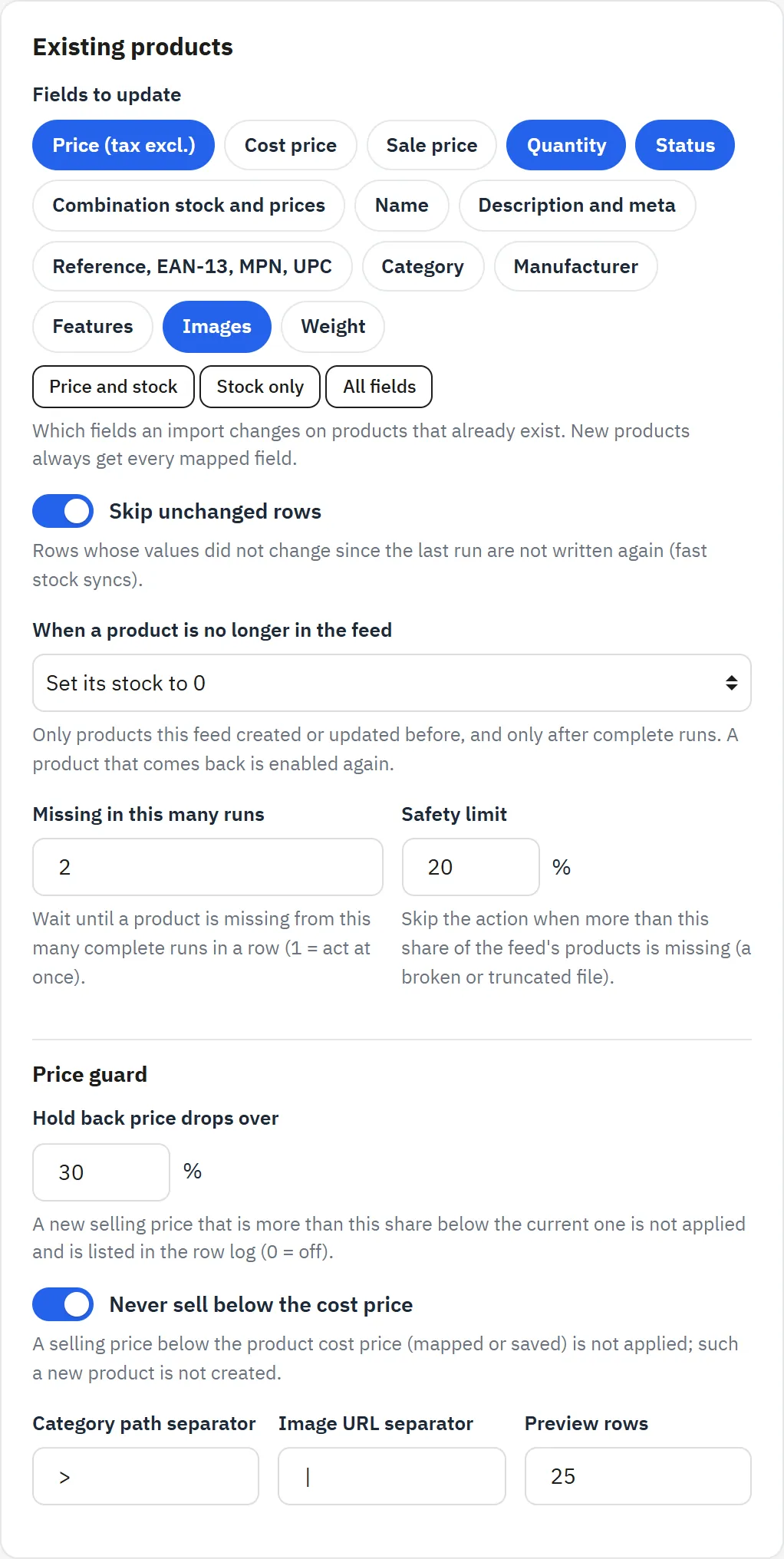
Import options for existing products
Create products that are not in the store (off = update only), Status of new products (for example Disabled until you check them), Category for new products, Shop (multistore), Feed language, Tax rules of new products, and whether missing categories, manufacturers and attribute groups are created.
Fields to update on existing products, for example only Price and Quantity. The shortcuts Price and stock, Stock only and All fields set them in one click. New products always get every mapped field.
Skip unchanged rows: rows whose values did not change since the last run are not written again (fast stock syncs).
When a product is no longer in the feed: do nothing, disable it, or set its stock to 0. Only products this feed created or updated before are affected, only after complete runs, and only when the product was missing from this many runs in a row (1 = at once). The Safety limit skips the action when more than the given share of the feed's products is missing (a broken or truncated file).
Category path and image URL separators, and the number of preview rows.
Price guard
Price guard options
Hold back price drops over (percent, 0 = off): a new selling price that is more than this share below the current one is not applied.
Never sell below the cost price: a selling price below the product's cost price (from the feed, or the saved one) is not applied, and such a new product is not created.
A held-back price is listed in the preview and the row log with the old and new value; the product's stock and other fields still update. Fix the feed or the rule, or raise the limit, and the next run applies the price.
Row log with two prices held back
5. Preview
Run preview downloads the feed and shows what would happen to the first rows: create, update with the old and new value of each changed field, unchanged, skip or error, with the messages (including the price guard). Nothing is saved.
6. Run history
Run history
Run now (top right) imports the whole feed with a progress bar: rows first, then images, then the products that left the feed. You can leave the page; the cron finishes the run. Cancel stops it (rows imported so far stay imported).
The history lists each run with the start time, Run now or Scheduled, the status and the counters. Row log shows each warning or error with the row number, the product code and the reason, for example Price: "call us" is not a valid number or A new product needs a name. A new product is never created without a valid price.
Undo is offered on the newest run that changed something: it restores the values products had before that run (price, cost price, sale price, stock, status, texts, codes, category, manufacturer, features, combinations and images) and disables the products the run created. Undo works backwards one run at a time; after undoing, the next run compares every row again.
FAQ
Does it change my storefront, core files or use overrides?
No. It works only in the back office and from the cron URL, with no storefront hooks, no overrides and no core changes. Imported products are normal PrestaShop products.
Does one package work on PrestaShop 8 and 9?
Yes: one module for PrestaShop 8.2.0 to 9.x.
How many suppliers can I connect?
As many as you like: one feed per supplier, each with its own schedule, mapping and rules.
My supplier sends prices without my margin. How do I add it?
Add markup rules on Price and stock rules: for example +80 % up to 15, +60 % from 15 to 40, +25 for posters over 40, +45 % above that, and round to .99. The first matching rule is used.
What if my supplier sends a wrong price?
Set the price guard: for example hold back drops over 30 % and never sell below the cost price. Such prices are not applied and are listed in the row log; everything else still updates.
I only want to update stock every 15 minutes, not my texts. Set Run automatically to every 15 minutes, click Stock only under Fields to update and keep Skip unchanged rows on. Rows that did not change are not written again.
What happens to products the supplier removed?
With When a product is no longer in the feed set to Set its stock to 0 or Disable it, they are changed after complete runs, after the number of missed runs you choose. The Safety limit (for example 20 %) stops this when a file is broken or truncated. Products that come back are enabled again.
Can I see what a run will do before it runs?
Yes: Preview shows the first rows with old → new values and saves nothing.
I ran a feed with a wrong rule. Can I go back?
Yes: Run history > Undo restores the previous values and disables the products that run created.
Does it work with XML feeds like Google Merchant?
Yes. Set the product element (for example //item, //offer) and use XPath paths for the fields (namespaced fields such as g:price and g:id work with the prefix used in the file, attributes like @id, parameters like param[@name="Color"]).
My feed has one row per size. Do I get one product per size?
No: map Parent code, Attribute group and Attribute and the rows become one product with combinations, stock and price impact per size.
Are images downloaded every time?
No. Images are downloaded in their own step after the rows and only again when their URLs change; all your image sizes are generated. Your own product photos stay.
My feed is on my own network or on localhost. Turn on Allow feeds from private network addresses in the settings. It is off by default so a feed URL cannot be used to reach internal services.
Where is the cron command?
On the settings page, with the URL and your key. See Installation.
Is it multistore compatible?
Each feed writes to one shop that you choose on Import options; products are matched by reference, EAN-13, supplier reference or MPN across the catalogue.
The department store theme for PrestaShop 8.2 and 9.x: colour-coded departments, a department list beside the hero slider with two side promos, a big search with a department picker, tabbed product grids, a 2 + 1 + 2 offer grid, deals of the day with real countdowns, a department showcase, a promotions band and a three-column product page with a sticky buy box. Four styles (Meridian, Harbor, Citrus, Night), every colour editable. A child theme of Classic, no core changes.
Stop AI crawlers, scrapers, vulnerability scanners and unwanted countries before PrestaShop 8.2 or 9.x builds a page. Googlebot and Bingbot are verified by DNS and always allowed; 50+ bots get one switch each; country rules use free GeoIP databases and can close only the checkout; IP and network lists, rate limits for search, filters and forms, honeypots and the add to cart flood fix; a one-second challenge instead of a captcha; learning mode, dashboard, log, IP tester and Cloudflare export. Two hooks, no overrides.
The multipurpose flagship theme for PrestaShop 8.2 and 9.x: five ready store styles (Fashion, Electronics, Home & furniture, Beauty, Grocery) switchable in one click from one settings page, three header and two footer layouts, four hero layouts, a mega menu with pictures and brands, live search with pictures, AJAX filters with Faceted search, quick view, wishlist and compare, one-tap add to cart, a sticky add-to-cart bar, frequently bought together and a mobile tab bar. A child theme of Classic, no core changes.